
Suppliers
Manage your supplier relationships, contacts, and product catalogs for efficient procurement
Table of Contents
1 Introduction to suppliers
Suppliers are the companies or people from whom you purchase your stock items. Good supplier management facilitates your purchases and improves order tracking.
Centralized information
All supplier contact details and documents accessible with one click
Performance evaluation
Track reliability, delivery times, and quality of each supplier
Quick order creation
Access supplier items directly when creating purchase orders
💡 Tip : A well-documented supplier facilitates communication, speeds up orders, and improves inventory management.
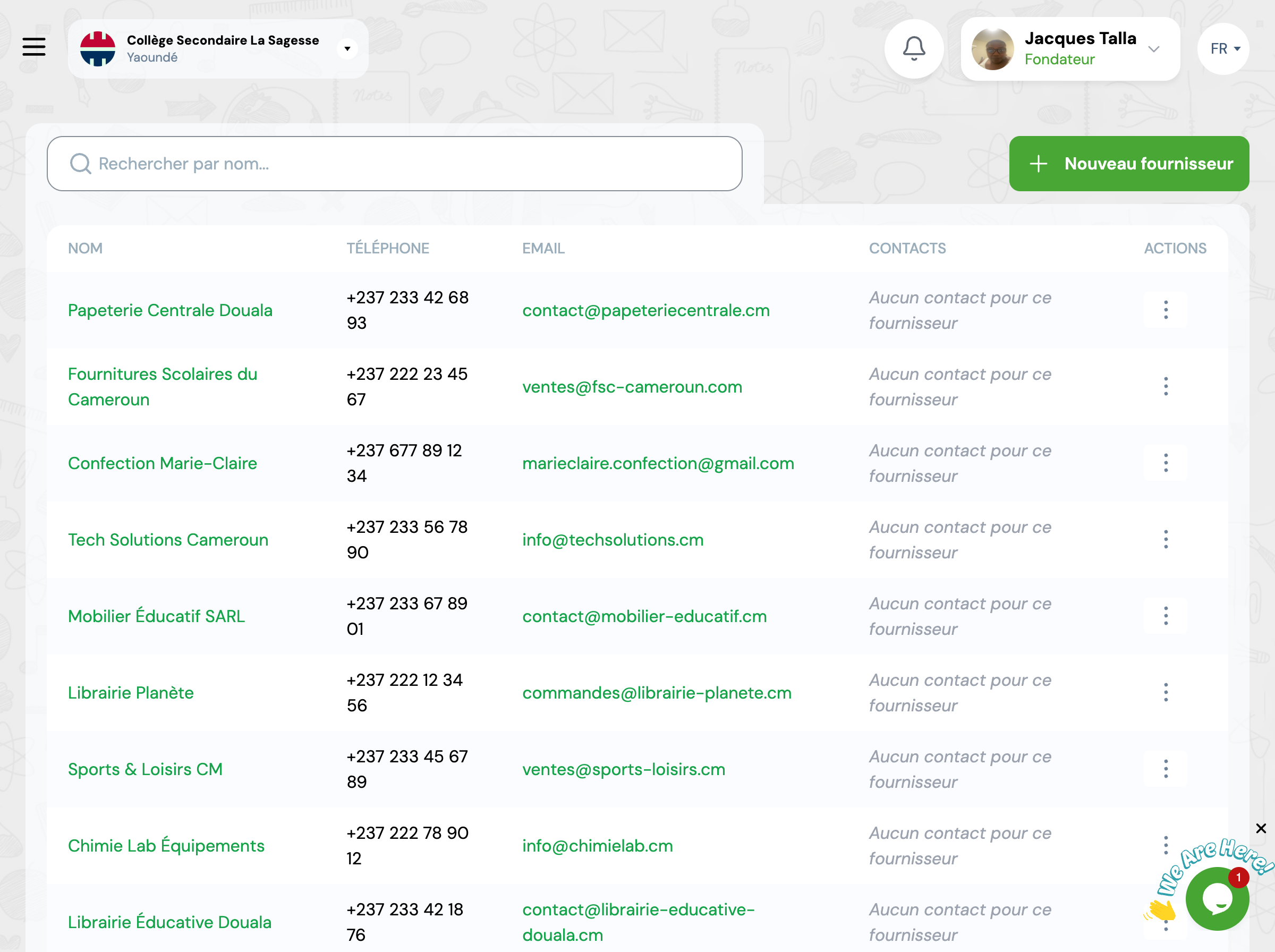
2 Add a supplier
Access the form
Go to GO4STOCK > Suppliers and click 'New supplier'.
Fill in essential information
Supplier name (required)
The business or company name.
Contact information
📞 Phone
Main number for orders
Address for sending purchase orders
📍 Address
Complete address (street, city, district, country)
Additional information (optional)
• Website : Supplier's website URL (e.g., www.supplier.com)
• Notes : Payment terms, delivery times, special remarks
Save the supplier
Click 'Save'. The supplier is now available in your database.
✅ Stock : Add contacts and associate items this supplier can provide.
Example: Stationery supplier
Name : Papeterie Moderne SARL
Phone : +237 6 XX XX XX XX
Email : [email protected]
Address : Boulevard de la Liberté, Douala, Cameroun
Website : www.papeterie-moderne.cm
Notes : Paiement à 30 jours. Livraison gratuite à partir de 100 000 FCFA. Remise de 5% sur commandes > 500 000 FCFA.
3 Managing contacts
A supplier can have multiple contacts for different departments (sales, delivery, accounting, etc.).
Add a contact
Access supplier record
Open the supplier details page
Click 'Add contact'
In the Contacts section
Fill in information
• Full name : First and last name of contact
• Function : Sales rep, Delivery manager, Accountant, etc.
• Phone : Direct number
• Email : Professional email address
• Notes : Availability, languages spoken, remarks
Typical contact examples
Jean Dupont
Commercial
Marie Martin
Responsable livraison
Paul Bernard
Service comptabilité
Sophie Dubois
Service après-vente
4 Associate items
Indicate which items can be ordered from each supplier to facilitate purchase order creation.
💡 Optional but recommended : When creating a purchase order, the system will automatically suggest items available from the selected supplier.
How to associate items
-
1
From the item record
Open the item and add one or more suppliers in the 'Suppliers' section
-
2
From the supplier record
Open the supplier and associate items they can supply
Information to provide
Required
• Item to associate
Optional but recommended
• Purchase price from this supplier
• Supplier's item reference
• Average delivery time
Example: Stationery supplier catalog
Modern Stationery LLC - Available items:
Cahiers 100 pages
Supplier ref: CAH-100
350 FCFA
Stylos bleus
Supplier ref: STY-BL-01
100 FCFA
Gommes blanches
Supplier ref: GOM-WH
50 FCFA
5 Performance tracking
GO4STOCK automatically calculates performance indicators for each supplier based on order history.
Number of orders
24
Orders placed in the last 12 months
On-time delivery rate
92%
Deliveries meeting expected deadlines
Total volume
3.2M
XAF ordered in 12 months
Average delivery time
5 jours
Average time between order and delivery
Late orders
2
Deliveries currently late
Satisfaction rating
4.5/5
Overall supplier evaluation
📊 Analyse : These indicators help you identify the best suppliers and make informed decisions during purchases.
6 Best practices
Document everything
Fill in as much information as possible: contact details, contacts, payment terms, deadlines. This facilitates future orders.
Add multiple contacts
Record the sales rep, delivery manager, and accountant. If one contact is unavailable, you have a backup plan.
Indicate prices
Enter purchase prices for items from each supplier. This allows easy comparison and choosing the best price.
Update regularly
Periodically verify that contact details, contacts, and prices are still current. A supplier can change address or rates.
Check performance
Regularly analyze delivery statistics and delays to identify the most reliable suppliers.
Archive documents
Use the 'Documents' section to store catalogs, general terms and conditions, and supplier certificates.
7 Frequently asked questions
Can I delete a supplier?
You can only delete a supplier if they have no associated purchase orders. If orders exist, the system will prevent deletion to preserve traceability. In this case, you can deactivate them by removing all their associated items.
How do I compare prices between suppliers?
If you've associated an item with multiple suppliers with their respective prices: 1) Open the item record, 2) Check the 'Suppliers' section, 3) Compare prices displayed for each supplier. You can also use the purchase request system which automatically compares quotes from multiple suppliers.
How do I view a supplier's order history?
Open the supplier record. In the 'Purchase orders' tab, you'll find the complete list of all orders placed with this supplier, with their statuses, dates, and amounts.
Can an item have multiple suppliers?
Yes, and it's recommended! Associate multiple suppliers with the same item to: compare prices and terms, have alternatives in case of stockout, negotiate better rates, reduce dependence on a single supplier.
