
Purchase Orders
Create, track, and manage all your supplier purchase orders efficiently
Table of Contents
1 Introduction to purchase orders
A purchase order is an official document you send to a supplier to order items. It details ordered items, quantities, prices, and delivery conditions.
Complete traceability
Track each step from creation to complete delivery with detailed history.
Time saving
Automatically generate professional PDFs ready to send to suppliers.
Budget tracking
Control your expenses with automatic amount calculation and accounting integration.
💡 Automatic reference
Each purchase order receives a unique reference in BC-YYYYMMDD-XXXX format (example: BC-20251107-0001).
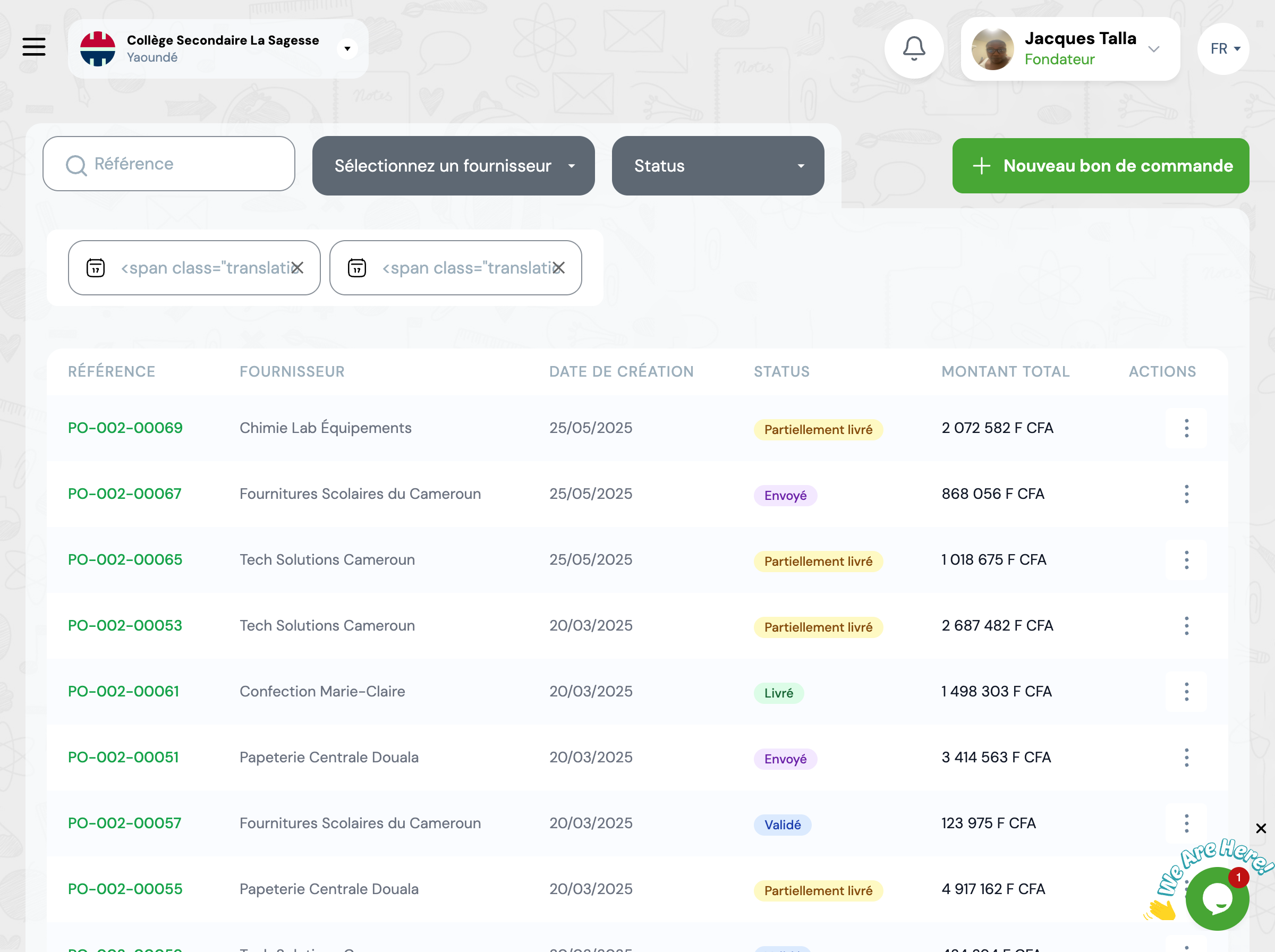
2 Create a purchase order
Access the form
From the Purchase orders page, click "New purchase order".
💡 Tip: You can also create a purchase order directly from a validated purchase request. The system will automatically pre-fill the items.
General information
Supplier
Select the supplier from the dropdown list. If the supplier doesn't exist yet, you must first create them in the Suppliers section.
Creation date
Purchase order creation date (defaults to today's date).
Expected delivery date (optional)
Indicate the date when you expect delivery. If this date is exceeded, the purchase order will be marked as LATE.
Custom reference (optional)
An automatic reference is generated. You can customize it if necessary.
Notes (optional)
Add remarks, payment terms, delivery instructions, etc.
Add items to order
For each item you wish to order:
1️⃣ Item
Select the item from the catalog
2️⃣ Quantity
Indicate the number of units to order
3️⃣ Unit price
Price negotiated with supplier
4️⃣ Automatic total
Calculated automatically (quantity × price)
✅ Tip: Click "+ Add an item" to order several different products in the same purchase order. The total amount is calculated automatically.
Save the purchase order
Click "Save" to create the purchase order in Draft status.
⚠️ Important
A purchase order in Draft status is not yet sent to the supplier. You can modify it freely before validation.
Example: School supplies order
Supplier: Modern Stationery LLC
Creation date: 11/07/2025
Expected delivery date: 11/20/2025
Reference: PO-20251107-0001
Notes: Payment in 30 days. Delivery to main warehouse.
Ordered items:
100-page notebooks
500 units × $3.50
$1,750
Blue pens
300 units × $1.00
$300
White erasers
200 units × $0.50
$100
3 Purchase order lifecycle
A purchase order follows a structured lifecycle with 6 possible statuses to ensure optimal control.
Overview Title
Overview Description
Complete purchase order workflow
Initial state after creation. The purchase order is modifiable and deletable.
The purchase order has been validated by a manager. It is ready to be sent to the supplier.
The purchase order has been sent to the supplier. Awaiting delivery.
At least one delivery has been recorded, but not all items have been received yet.
All items have been delivered and received. The purchase order is complete.
✅ Order completed successfully
The purchase order was cancelled before complete delivery.
❌ No action possible - Purchase order archived
Automatic status updates
The "Partially delivered" and "Delivered" statuses are updated automatically when you record deliveries.
Cancellation impossible after delivery
A delivered or partially delivered purchase order cannot be cancelled. Contact the supplier for a return if necessary.
4 Delivery tracking
The delivery tracking system allows managing partial or complete receptions and maintaining perfect traceability.
📦 Multiple deliveries: A purchase order can be delivered in multiple times. For example, if you order 500 notebooks, the supplier can deliver 300 notebooks today and 200 in a week.
Check delivery status
From the purchase order detail page, you can see:
Ordered quantity
500
100-page notebooks
Delivered quantity
300
60% of total
Remaining quantity
200
40% pending
Record a delivery
When you receive items from the supplier:
-
1
Access the purchase order
Click on the purchase order in the list
-
2
Create a delivery
Click "New delivery"
-
3
Enter received quantities
For each item, indicate how many units you received
-
4
Validate the delivery
Stock will be automatically updated
Late detection
If the expected delivery date is exceeded and the purchase order is not yet delivered, it appears with a red background in the list and a LATE badge.
💡 Recommended action: Contact the supplier to know the new delivery date and adjust it in the purchase order if necessary.
5 PDF generation and sending
GO4STOCK automatically generates a professional PDF for each validated purchase order.
Generate the PDF
From the purchase order detail page, click "Print PDF" or "Download PDF".
PDF content
The PDF contains:
- Institution logo and contact details
- Supplier information
- Reference and dates
- Detailed item table
- Total amount
- Notes and conditions
Send to supplier
To send the purchase order to the supplier:
📧 By email
Download the PDF and send it by email
📱 By WhatsApp
Share directly from your phone
Print for hand delivery
💡 Tip: After sending the PDF, click "Mark as sent" to change the status to Sent.
6 Management and tracking
Search filters
🔍 By reference
Search for a specific order
🏢 By supplier
View all orders from a supplier
📅 By period
Filter by creation date
📊 By status
Draft, Validated, Sent, etc.
💰 By amount
Minimum and maximum amount
⏰ Late only
View late orders
Dashboards and statistics
View key indicators from the GO4STOCK dashboard:
📈 Total order amount
By month, quarter or year
✅ Delivery rate
Percentage of orders delivered on time
🏢 Top suppliers
Ranking by order volume
⏰ Late orders
List of delays to follow up
Exports and reports
📊 Excel/CSV export
Export the complete list of purchase orders with all details for external analysis
📄 Monthly report
Generate a summary report of monthly purchases for management
7 Best practices
Fill in expected delivery date
Always indicate an expected delivery date. This allows the system to detect delays and alert you.
Add detailed notes
Specify payment terms, delivery method, warranties, etc. This information will appear on the PDF.
Verify before validation
Once validated, the order can no longer be modified. Carefully review quantities, prices and supplier.
Record deliveries promptly
As soon as you receive items, create the delivery in the system to update stock in real time.
Consolidate your orders
Group several items in the same purchase order rather than creating multiple separate orders.
Track delays
Regularly check the list of late orders and follow up with suppliers if necessary.
Use purchase requests
Start from a purchase request to automate purchase order creation and compare quotes.
Analyze your purchases
Review monthly reports to identify cost optimization opportunities.
8 Frequently asked questions
Can I modify a purchase order after validation?
No, a validated purchase order can no longer be modified. If you need to make corrections, you have two options: 1) Cancel the order and create a new one (if not yet sent), or 2) Create a supplementary purchase order to add items.
What happens if the supplier delivers less than expected?
When recording the delivery, simply indicate the quantity actually received. The system will automatically calculate the remaining quantity and the order will change to "Partially delivered" status. You can record a supplementary delivery later.
Example: You ordered 500 notebooks. The supplier delivers 300. Record a delivery of 300 units. The system will show that 200 notebooks remain to be delivered.
How to handle a price error after sending to supplier?
If you discover a price error after sending the order to the supplier, contact them immediately. If the supplier accepts the correction, you can cancel the purchase order and create a new one with the correct price. Add a note explaining the situation in the new order.
Does delivery automatically update stock?
Yes! When you validate a delivery, the stock of concerned items is automatically increased by the received quantities. This is why it's important to promptly record deliveries in the system.
Can I create a purchase order for multiple suppliers?
No, each purchase order is linked to a single supplier. If you need to order items from multiple suppliers, create a separate purchase order for each one. This facilitates tracking deliveries and invoices by supplier.
What is the difference between "Purchase request" and "Purchase order"?
A purchase request is an intention to buy used to compare quotes from multiple suppliers. A purchase order is the official document sent to a specific supplier to confirm the purchase.
Recommended workflow: Create a purchase request → Compare quotes → Create a purchase order for the chosen supplier
