
Supplier Invoices
Manage the complete invoice lifecycle from reception to payment with approval workflows
Table of Contents
1 What is a supplier invoice?
A supplier invoice is the official document sent by your supplier after delivery of ordered items. It details delivered items, quantities, prices, and total amount to pay. GO4STOCK allows managing the complete invoice cycle with approval workflow.
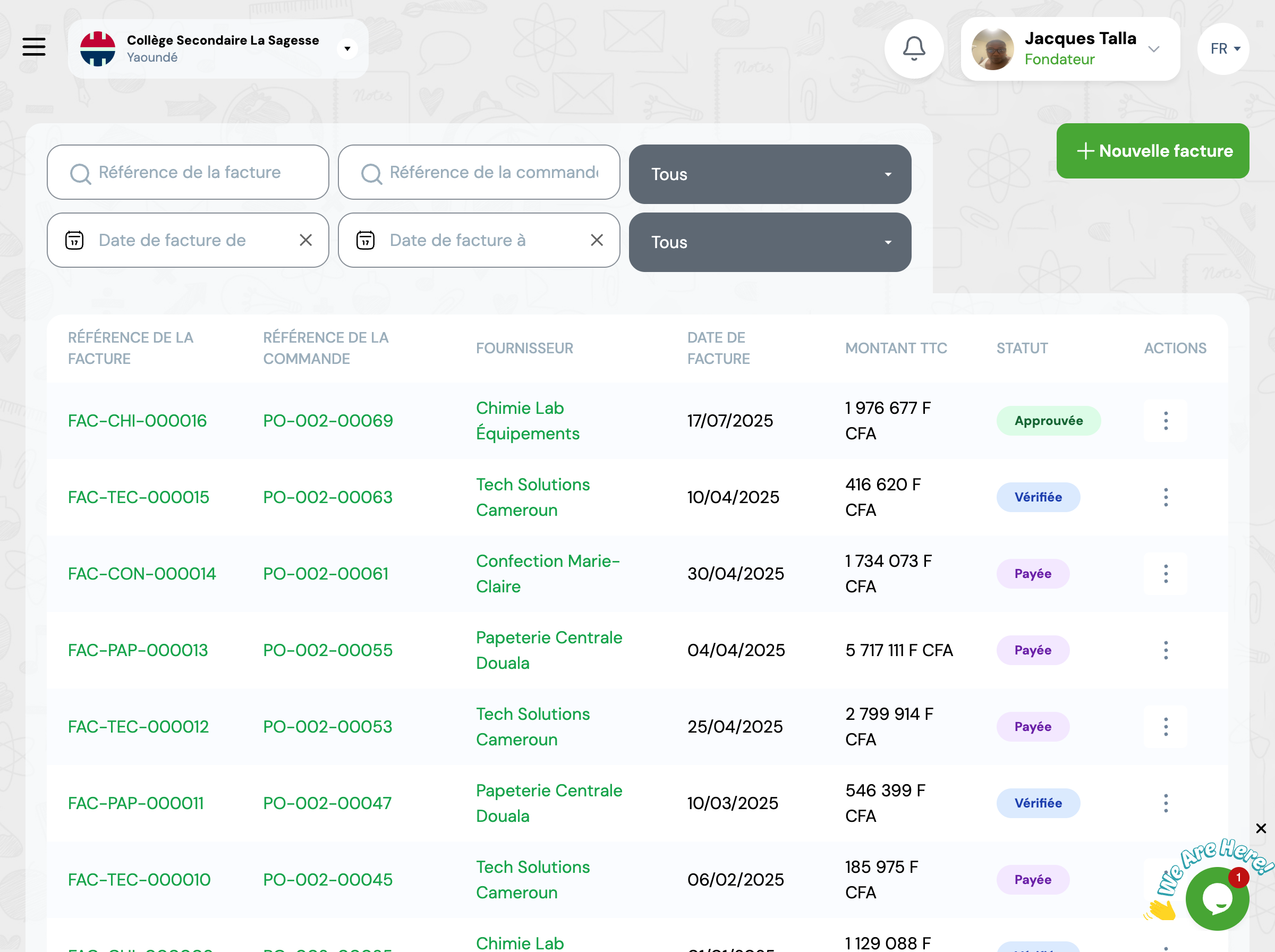
2 Invoice lifecycle
Invoice workflow
Invoice has been recorded in system (manually or automatically from purchase order)
Responsable : Stock manager or accountant
First level of control validated that invoice matches delivery and quantities received
Responsable : Purchasing manager
Invoice has been approved and can be paid. It's transmitted to accounting department for payment
Responsable : Director or financial manager
Invoice was refused due to non-conformity (price error, incorrect quantities, etc.)
Responsable : N/A - Contact supplier
Payment has been made. Invoice is archived
Responsable : Accountant
3 Create an invoice
Recommended From purchase order
Recommended method: during delivery reception, system can automatically generate pre-filled invoice
Access delivered purchase order
Click 'Create invoice'
System automatically pre-fills all fields (items, quantities, prices)
Add supplier invoice number and reception date
Save
Manually
If invoice is not linked to existing purchase order
Go to GO4STOCK > Invoices
Click 'New invoice'
Select supplier
Add invoiced items with quantities and unit prices
Fill in supplier invoice number and date
Save
4 Verify an invoice
Verification consists of checking that invoice matches delivery actually received
Points to verify
Invoiced items match delivered items
Invoiced quantities match received quantities
Unit prices match purchase order
Total amount is correct
Invoice number and date are correct
Supplier information is accurate
How to verify
1. Open invoice in 'Created' status
2. Compare with delivery note and purchase order
3. If everything conforms, click 'Verify'
4. If you detect error, modify or reject invoice with explanatory comment
5 Approve an invoice
Approval is final validation before payment. It's generally reserved for managers or directors
Approval criteria
✓ Invoice has already been verified
✓ Budget is available for this payment
✓ Supplier is in good standing
✓ No ongoing dispute with this supplier
How to approve
1. Open invoice in 'Verified' status
2. Check amount and supplier
3. Click 'Approve'
4. Invoice changes to 'Approved' status and can be paid
6 Reject an invoice
You can reject an invoice anytime if you detect anomaly
Common reasons for rejection
Prices different from those agreed
Invoiced quantities higher than delivered quantities
Items not ordered or not delivered
Calculation errors on total
Missing or incorrect information
How to reject
1. Open invoice
2. Click 'Reject'
3. Mandatory add comment explaining rejection reason
4. Contact supplier to get corrected invoice
7 Mark as paid
Once payment made by accounting department, mark invoice as paid in GO4STOCK
How to mark as paid
Open invoice in 'Approved' status
Click 'Mark as paid'
Indicate payment date and payment method (transfer, check, cash, etc.)
Add payment reference (check number, transfer reference, etc.)
Save
⚠️ Important : Once marked as paid, invoice can no longer be modified. It's permanently archived.
8 Best practices
Create invoices upon receipt
Don't wait! Record each invoice as soon as you receive it to avoid oversights and facilitate tracking.
Attach PDF file of invoice
Scan or download PDF file of original invoice and attach it to invoice record in GO4STOCK.
Systematically verify
Never go directly from 'Created' to 'Approved'. Respect complete workflow to avoid errors.
Document rejections
When rejecting invoice, be precise in your comments to facilitate supplier correction.
Follow payment deadlines
Respect payment terms negotiated with your suppliers (30 days, 60 days, etc.) to maintain good relations.
Archive supporting documents
Keep all related documents (invoice, delivery note, purchase order) for at least 5 years for audits.
9 Frequently asked questions
Can I modify an already approved invoice?
No, an approved invoice can no longer be modified. If you detect error, you must: 1) Reject it with explanatory comment, 2) Create new corrected invoice. This rule ensures traceability and integrity of approval process.
What if invoice doesn't match purchase order?
If invoice differs from purchase order (prices, quantities), you have two options: 1) If discrepancy is minor and justified, you can accept it and explain in notes, 2) If discrepancy is significant, reject invoice and contact supplier to get conforming invoice.
How to handle partial invoices?
If purchase order is delivered in multiple times, create separate invoice for each delivery. Each invoice will correspond to part of purchase order. System keeps track of all invoices linked to same purchase order.
Who can approve invoices?
Permissions are defined by role. Generally: stock managers can create and verify, purchasing managers can approve up to certain amount, directors approve high amounts. Consult your administrator to know your permissions.
Can I cancel a payment?
No, once invoice is marked as 'Paid', it can no longer be modified. If refund is necessary, create separate credit note invoice (negative amount) to cancel initial transaction.
How to search for old invoice?
Use filters on invoices page: by supplier, by status, by period, by invoice number or by associated purchase order. You can also search by amount or reference.
