
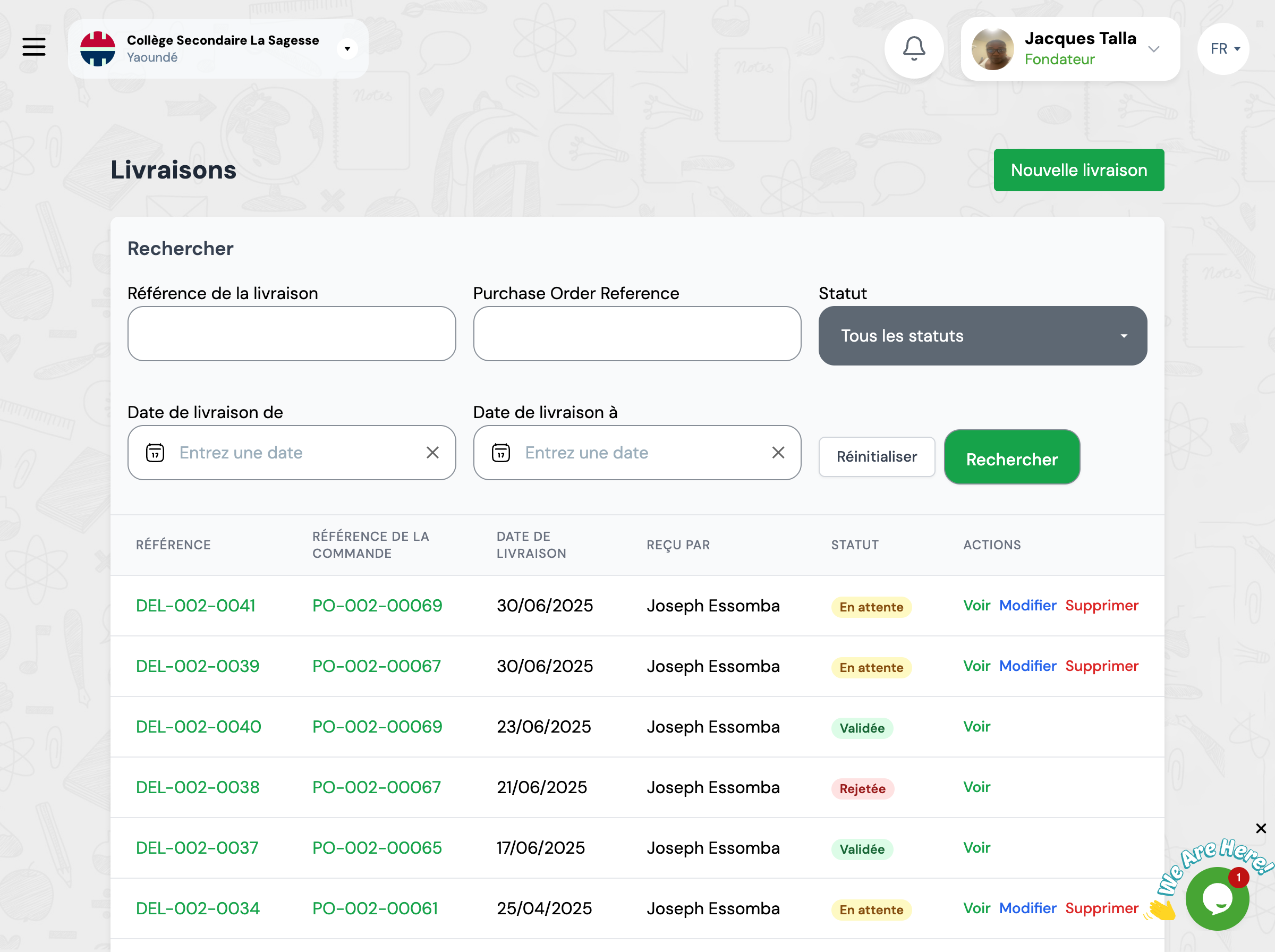
Deliveries
Receive, verify, and process supplier deliveries to update your stock accurately
What is a delivery?
A delivery corresponds to the physical reception of items ordered from suppliers. This is when stock is actually updated in the system.
Complete traceability
Track all goods receptions with complete history of deliveries and reported anomalies.
Quality control
Verify conformity of delivered items and document discrepancies from orders.
Automatic update
Stock is automatically updated when validating the delivery, without manual entry.
Delivery lifecycle
A delivery goes through several stages before updating stock definitively.
Rejected delivery
If the delivery is not conforming, it can be rejected and the supplier must resend the items.
Reception statuses
When receiving, you can indicate the status of each delivered item.
Items are conforming and in good condition, they are accepted into stock.
Only part of the ordered quantity was delivered.
Items are not conforming or damaged and are refused.
How to receive a delivery
Access the delivery
Go to the corresponding purchase order and click 'New delivery' or directly access the list of pending deliveries.
Enter general information
Fill in the basic delivery information.
Fields to fill:
- • Delivery reference
- • Delivery date
- • Person receiving
- • Supplier delivery note number (optional)
Check delivered items
For each item in the purchase order, verify and enter reception information.
Quantity received
Indicate how many you physically received
Reception status
Accepted, Partial or Rejected
Storage location
Where the item will be stored
Document anomalies
If you notice problems, document them in the delivery notes.
Types of anomalies to report:
Note any discrepancy from the original order.
- • Missing or excess quantities
- • Damaged or defective items
- • Items not matching the order
Validate the delivery
Once all verifications are done, click 'Validate delivery'.
Delivery validated successfully!
Stock was automatically updated and a reception document was generated.
Validating a delivery
When you validate a delivery, the system automatically performs several actions.
Automatic actions upon validation:
- Creation of stock entry movements for each accepted item
- Update of stock quantities in the indicated locations
- Change of purchase order status (Delivered or Partially delivered)
Reject a delivery
If the delivery doesn't match the order at all or is totally damaged, you can completely reject it by not validating any item.
Practical example
Context:
You ordered 100 notebooks, 50 pens, and 200 pencils. The supplier delivers the items.
Notebooks
Ordered: 100
Received: 100
AcceptedPens
Ordered: 50
Received: 45
PartialPencils
Ordered: 200
Received: 0
MissingResult:
- • 100 notebooks are added to stock
- • 45 pens are added to stock (5 missing)
- • Purchase order changes to 'Partially delivered' status
Best practices
Receive immediately
Record delivery in the system as soon as physical reception occurs to maintain stock reliability.
Check systematically
Never blindly trust the delivery note. Always count and verify.
Report discrepancies quickly
In case of discrepancy or quality issue, contact supplier immediately (within 24-48 hours).
Photograph damage
Take photos of any damaged or non-conforming item before storing it.
Store methodically
Immediately place items in designated locations to avoid losses.
Archive documents
Keep signed delivery notes and quality control reports.
Frequently asked questions
What if I receive less than ordered?
Only enter the quantity received during reception. The system will mark the purchase order as 'Partially delivered'. Contact the supplier to know the delivery date for the rest. You can receive the complement later.
What if I receive more than ordered?
Enter the quantity actually received. The system will accept the extra quantity and update stock accordingly. Contact the supplier to clarify the situation (error or bonus).
How do I refuse a delivery?
If the delivery is totally non-conforming or damaged: 1) Do NOT validate reception, 2) Photograph item condition, 3) Have deliverer sign refusal document, 4) Contact supplier immediately, 5) Wait for conforming new delivery.
Can I cancel a reception already validated?
No, a validated reception cannot be cancelled because stock has already been updated. If you discover an error after validation, you must create a manual exit movement to correct stock, then contact supplier to organize return if necessary.
Does delivery update item prices?
Yes, if the item price in the purchase order differs from the current price, the system will recalculate the item's weighted average cost (WAC) automatically during reception.
