
Teacher Attendance
Attendance tracking system with QR code for efficient and modern monitoring.
Introduction
The attendance module allows automated tracking of teacher presence through a QR code system. Each teacher can clock in and out by scanning a unique code, ensuring accurate and real-time attendance monitoring.
Good to Know
The system automatically generates daily, weekly and monthly attendance statistics. Delays and absences are detected based on configured schedules.
QR Code System
How does it work?
QR Code Generation
A unique QR code is generated for each day and displayed at the entrance
Teacher Scan
The teacher scans the code with their mobile app upon arrival and departure
Automatic Recording
The clock-in time is automatically recorded in the system
Security
The QR code is regenerated daily and contains a secure token that prevents fraud and impersonation. Each scan is timestamped and geolocated to guarantee authenticity.
Recording Attendance
For Teachers (Mobile App)
-
1
Open the App
Launch the GO4SCHOOL application on your smartphone
-
2
Access the Scanner
Click on the "Clock In" icon in the main menu
-
3
Scan the QR Code
Point the camera at the QR code displayed at the entrance
-
4
Confirmation
A confirmation message displays with the recorded time
For Administrators (Manual Clock-In)
In case of technical issues or no smartphone available, the administrator can manually record attendance.
-
1
Access Dashboard
GO4SRH → Teacher Attendance
-
2
Click "Clock In Manually"
Select the teacher from the list
-
3
Enter Time
Specify arrival or departure time
-
4
Save
Validate to record the clock-in
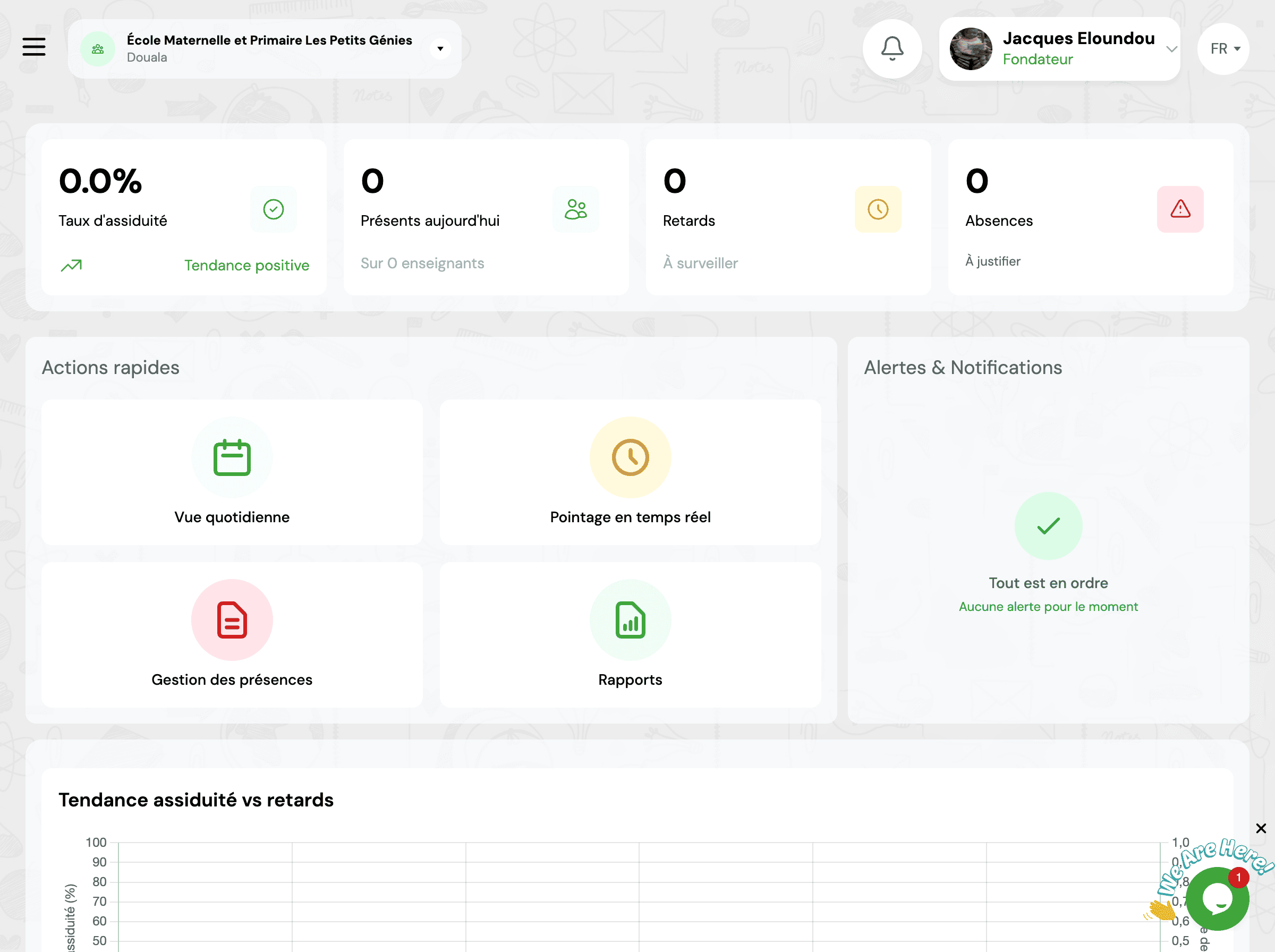
Attendance Dashboard
The dashboard provides a comprehensive overview of attendance with several key indicators.
📊 Attendance Rate
Percentage of teachers present by day, week or month
⏰ Delays
Number and list of teachers who arrived after regulation time
❌ Unjustified Absences
Teachers absent without recorded justification
📥 Export Data
All reports can be exported in the following formats:
Frequently Asked Questions
What happens if a teacher forgets to clock in?
The administrator can manually record the clock-in from the dashboard. Simply select the teacher, specify the arrival time, and add an explanatory note if necessary. The system will mark the clock-in as "Manual".
How are delays calculated?
Delays are automatically calculated by comparing the clock-in time with the start time configured in settings. For example, if the start time is 7:30 AM and a teacher clocks in at 7:45 AM, a 15-minute delay is recorded. You can configure a tolerance margin in the settings.
Does the QR code change daily?
Yes, for security reasons, a new QR code is automatically generated daily at midnight. This prevents fraud and ensures that the clock-in corresponds to the current day. The code can also be manually regenerated by the administrator if necessary.
Can a clock-in be modified afterwards?
Yes, administrators with appropriate permissions can modify clock-ins. Any modification is tracked in the history with the identity of the person who made the modification and the reason for the change. This ensures transparency and auditability of the system.
Related Modules
Explore other features related to staff management:
Start typing to search the documentation
Quick links

We respect your privacy
We use cookies on our website to give you the most relevant experience by remembering your preferences and repeat visits. By clicking 'Accept', you consent to the use of ALL the cookies.