
Staff Management
Efficiently manage staff files, documents and information for comprehensive and structured tracking.
Introduction
The staff management module centralizes all information related to your employees: personal data, contact information, administrative documents, contracts, and professional history. It's the heart of your HR system.
Good to Know
Each staff file is secured and accessible only according to defined permissions. Changes are automatically tracked to ensure GDPR compliance.
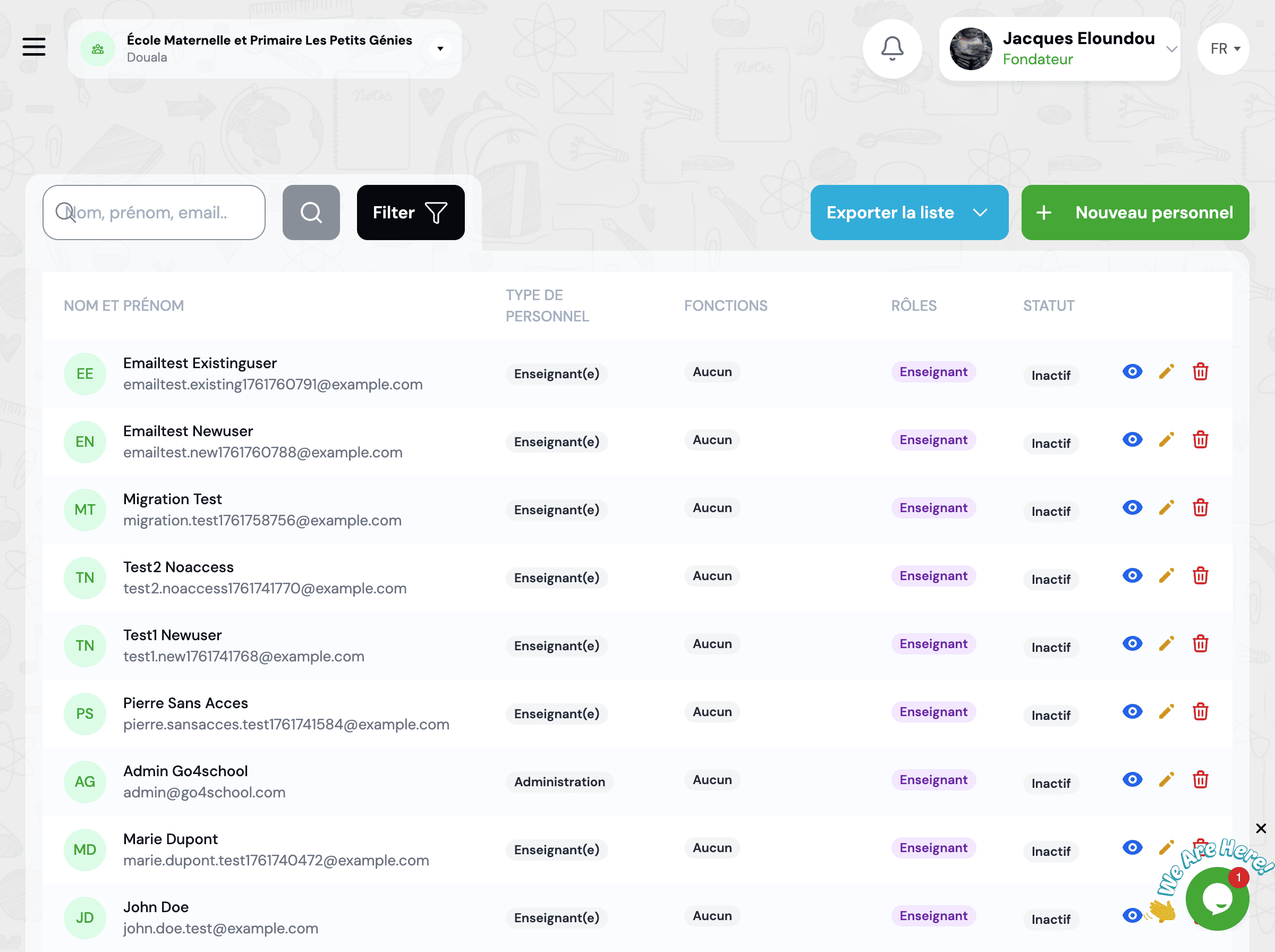
Add Staff
Staff Addition Form
1 Personal Information
Full Name
Staff member's full name
Date and Place of Birth
Date of birth and city of birth
Gender
Male, Female or Other
Marital Status
Single, Married, Divorced, Widowed
Number of Children
Number of dependent children
Nationality
Country of nationality
2 Contact Information
Phone
Primary phone number
Professional or personal email address
Address
Complete residential address
Emergency Contact
Name and phone number of emergency contact person
3 Professional Information
Function
Position held (Teacher, Director, etc.)
Hire Date
Contract start date
Contract Type
Permanent, Fixed-term, Internship, Temporary
Status
Active, Inactive, On Leave, etc.
Base Salary
Gross monthly remuneration
Department
Department or service assignment
4 Identity Documents
ID Type
National ID, Passport, Driver's License, etc.
ID Number
Unique document number
Expiry Date
Document expiration date
Document Copy
Upload scanned copy of ID
5 User Account
Create an account so staff can access GO4SCHOOL.
Login Email
Email address to use as login
System Role
Defines access permissions (Teacher, Manager, Admin, etc.)
💡 A temporary password will be automatically generated and sent by email. The user must change it on first login.
Automatic Employee Number
A unique employee number will be automatically generated for this staff member according to the format configured in settings (e.g., EMP2024001).
Staff Profile
The staff profile displays all information related to an employee in an organized and accessible manner.
Profile Sections
General Information
Personal data, contact info, photo
Function and Career
Current position, function history, seniority
Contracts
Current and past contracts, amendments
Leave and Absences
Leave balances, absence history
Evaluations
Evaluation results, performance
Attendance
Clock-ins, delays, attendance rate
Documents
ID documents, diplomas, certificates
Remuneration
Salary, bonuses, payslips
History
File modification log
✏️ Edit Information
Click the "Edit" button in each section to update information. Changes are saved instantly.
💡 Sensitive information (salary, personal documents) can only be modified by users with appropriate permissions.
📊 Generate Reports
Several types of documents can be generated from the profile:
Staff Documents
Centralize all administrative documents and supporting files of your staff in a secure space.
Document Types
📄 ID Card
National ID, passport, driver's license
🎓 Diplomas
Diplomas and training certificates
📝 Curriculum Vitae
Resume and cover letter
✉️ Cover Letter
Application letter
🏥 Medical Certificate
Medical fitness, medical visit
🏦 Bank Details
Bank account information
📋 Certificates
Various certificates (work, internship, etc.)
📸 ID Photo
Photo for badge and file
📑 Other Documents
Any other administrative document
Add Document
- 1. Access staff member's profile
- 2. Click on "Documents" tab
- 3. Click "Add Document"
- 4. Select document type
- 5. Upload file (PDF, DOCX, JPG, PNG)
- 6. Add title and description (optional) then save
Document Security
All documents are stored securely and encrypted. Access is controlled according to user permissions. A complete history of consultations and modifications is kept to ensure GDPR compliance.
Employment Contracts
Manage employment contracts, amendments and renewals for comprehensive legal tracking of your staff.
Contract Types
Permanent Contract
Contract with no predefined end date
- • Configurable trial period
- • Automatic renewal
- • Modification history
Fixed-Term Contract
Contract with start and end date
- • Alerts before expiration
- • Renewal possibility
- • Conversion to permanent possible
Internship
Internship agreement for students
- • Limited duration
- • Educational supervision
- • Mandatory compensation depending on duration
Temporary
One-time or part-time intervention
- • Hourly or flat-rate remuneration
- • No long-term commitment
- • Easy to set up
Contract Amendments
Amendments allow modifying an existing contract without creating a new one (salary change, function change, duration change, etc.).
Salary Amendment
Remuneration modification
Function Amendment
Position or responsibility change
Duration Amendment
Contract extension or reduction
Automatic Notifications
The system sends automatic alerts 60, 30 and 15 days before a fixed-term contract expires to anticipate renewal or contract end.
Search and Filters
Search Tools
🔍 Text Search
Quickly find a staff member by typing:
- • By first or last name
- • By employee number
- • By email
- • By phone number
🎯 Advanced Filters
Refine your search with multiple criteria:
- • By function (Teacher, Director, etc.)
- • By department or service
- • By contract type (Permanent, Fixed-term, Internship)
- • By status (Active, Inactive, On Leave)
📥 Export Results
Export filtered list in formats:
Frequently Asked Questions
How to modify a staff member's information?
Access the staff member's profile, click the "Edit" button in the relevant section, make your changes then save. Some sensitive information requires special permissions to be modified.
Can a staff file be deleted?
For legal compliance and traceability reasons, staff files are never permanently deleted. You can deactivate a file by changing the status to "Inactive". The file remains archived and viewable but no longer appears in active lists.
How to manage duplicates?
If you detect a duplicate, contact your system administrator who can merge the two files. This operation requires elevated permissions as it involves merging sensitive data and must be tracked for audit purposes.
Can staff members view their own file?
Yes, each staff member with a GO4SCHOOL account can view their own file from their personal space. They can see their information, documents, leave and absence history. Some information (internal evaluation notes, HR comments) may be hidden depending on configuration.
Related Modules
Discover other features related to staff management:
Start typing to search the documentation
Quick links

We respect your privacy
We use cookies on our website to give you the most relevant experience by remembering your preferences and repeat visits. By clicking 'Accept', you consent to the use of ALL the cookies.