
Leave Types
Configure and customize available leave types in your institution with flexible accrual rules.
Introduction
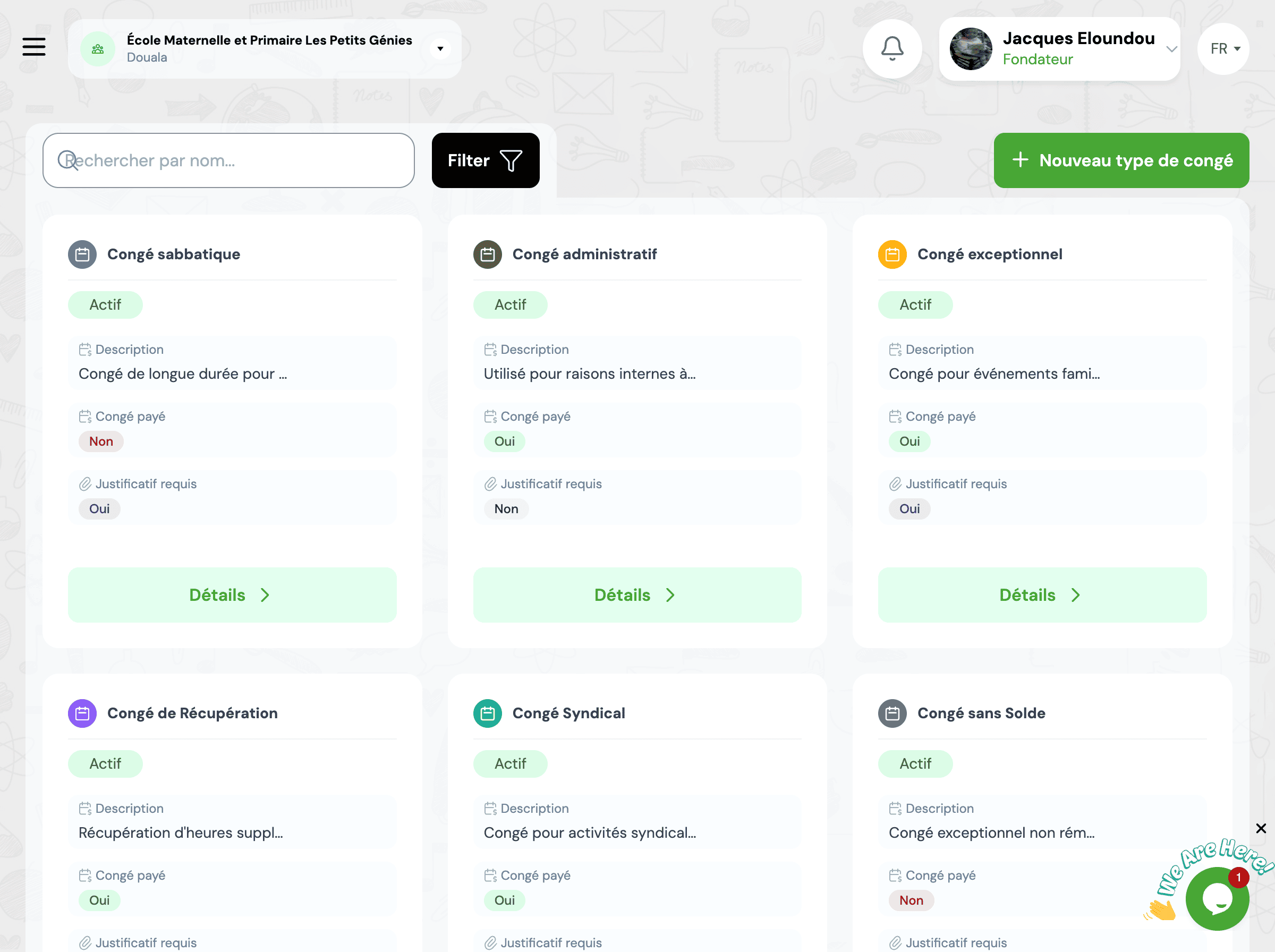
Leave types define the different categories of authorized absences in your institution. Each type has its own accrual, deduction and carry-over rules. GO4SRH offers predefined types compliant with legislation, while allowing you to create custom types according to your needs.
Key Points
- Predefined types compliant with legislation (paid leave, sick leave, maternity, etc.)
- Ability to create custom types according to your specific needs
- Flexible accrual rules (monthly, annual, fixed, prorata)
- Leave carry-over management with caps and deadlines
- Activation/deactivation without data loss
Predefined Leave Types
GO4SRH includes several preconfigured leave types compliant with current legislation. You can use them as is or adapt them to your needs.
Annual Paid Leave
Legal leave accrued progressively throughout the year.
- Automatic monthly accrual (typically 2.5 days/month)
- Carry-over possible according to legislation
- Automatic deduction upon approval
- Management of remaining balance and accrued days
Sick Leave
Absences for health reasons with medical certificate.
- Annual quota or unlimited according to your policy
- Option to require medical certificate
- Separate tracking of short and long sick leave
- Included in absence statistics
Maternity/Paternity Leave
Legal leave for family events.
- Durations compliant with legislation
- Automatic attribution according to event type
- Supporting documents required
- Not deductible from paid leave balance
Family Event Leave
Authorized absences for weddings, deaths, etc.
- Predefined durations according to event type
- One-time allocation upon request
- Supporting documents required
- Complete history for each employee
Training Leave
Absences for professional training.
- Configurable annual quota
- Two-step approval (hierarchy + HR)
- Training plan tracking
- Training certificates archived
Unpaid Leave
Exceptional unpaid absences.
- No deduction from paid leave balance
- Management approval required
- Visible impact on compensation
- Configurable maximum duration
Create a Custom Leave Type
Follow these steps to create a new leave type tailored to your specific needs.
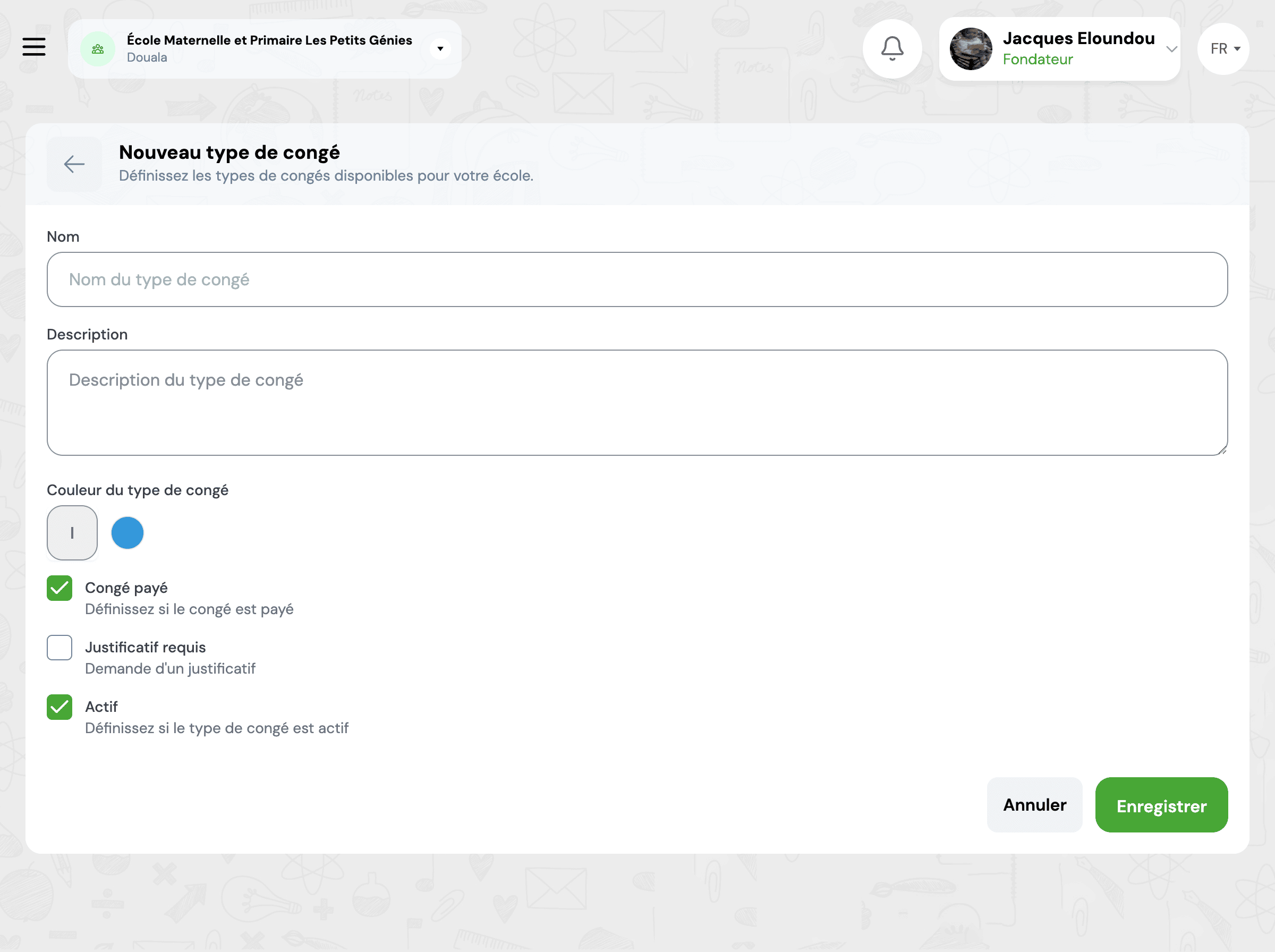
Access the form
Go to HR → Settings → Leave Types and click on New Leave Type.
General information
Fill in the basic information of the leave type:
- Name: Type title (e.g., Entrepreneurial Leave)
- Description: Detailed explanation of usage
- Color: Display color in calendars
- Icon: Representative icon (optional)
Accrual rules
Define how leave days are accrued:
- Monthly: Number of days accrued each month
- Annual: Total days allocated at the beginning of the year
- Fixed: Same quota for everyone, regardless of hire date
- Prorata: Proportional calculation according to arrival date
Deduction settings
Configure leave consumption:
- Counting unit: Working days, business days or calendar days
- Half-days: Allow or not half-days
- Weekend counting: Include or exclude Saturdays/Sundays
- Public holidays: Deduction or not during public holidays
Carry-over and expiration
Manage unused leave carry-over:
- Carry-over allowed: Enable/disable carry-over to next year
- Carry-over cap: Maximum number of days that can be carried over
- Usage deadline: Deadline to use carried over days
- Automatic expiration: Deletion of unused days
Approval workflow
Define the approval process:
- Approval required: Requests subject to approval or automatic
- Approvers: Line manager, HR, management
- Cascading approval: Approval order if multiple levels
- Supporting documents: Required, optional or not needed
Advanced options
Further customize your leave type:
- Availability: Accessible to all or limited to certain functions
- Compensation: Paid leave or unpaid
- Absence impact: Include in absence statistics
- Notifications: Automatic alerts to approvers and stakeholders
Test your new leave type on a small group before deploying it to all employees. This helps identify any necessary adjustments.
Leave Accrual Rules
Accrual rules determine how and when employees accumulate their leave days. GO4SRH offers four flexible accrual modes.
Leave days are credited each month automatically. Ideal for legal paid leave.
Example: 2.5 days/month = 30 days/year
The full quota is allocated at once at the beginning of the reference year.
Example: 30 days allocated on January 1st
All employees receive the same number of days, regardless of hire date.
Example: 5 days for everyone (family event leave)
The quota is calculated proportionally to the time present in the year.
Example: Arrival in July = 15 days instead of 30
Changes to accrual rules only apply to future periods. Already calculated balances are not automatically recalculated to preserve history.
Leave Carry-Over Management
Leave carry-over allows employees to transfer their unused days to the following year, according to the rules you define.
Carry-over activation
Enable or disable carry-over for each leave type individually. Some types (sick, maternity) generally cannot be carried over.
Carry-over cap
Define the maximum number of days that can be carried over to avoid excessive accumulation. Days exceeding this cap are lost.
Usage deadline
Set a deadline for using carried over days (e.g., March 31st Y+1). After this date, remaining days expire automatically.
Complete traceability
The system maintains a detailed history of all carry-overs: days carried over, days used, days expired. Accessible at any time for compliance.
Regularly inform your employees of their carried over days and the deadline to use them. GO4SRH can send automatic reminders.
Manage Existing Leave Types
Once your leave types are created, several actions are available to manage them effectively.
Edit a type
Click the edit button to adjust the settings of an existing type: accrual rules, workflow, advanced options.
Activate/Deactivate
Temporarily deactivate a leave type without deleting it. Employees will no longer be able to make new requests, but history is preserved.
View statistics
Access usage statistics for each type: number of requests, days consumed, trends, affected employees.
Duplicate a type
Quickly create a new type based on an existing one. Ideal for creating variants with slightly different parameters.
Delete a type
Permanently delete a leave type. Warning: this action is irreversible.
Export configuration
Export your leave types configuration to Excel or PDF for documentation or audit.
Frequently Asked Questions
Can I modify a leave type during the year?
Yes, you can modify a leave type at any time. However, changes only apply to new requests and future accruals.
Important: Already approved requests and existing balances are not recalculated to preserve history and traceability.
How to manage different leave types by job function?
You can restrict the availability of a leave type to specific job functions:
- In the type settings, "Availability" section
- Check "Limit to certain functions"
- Select the authorized functions
- Only employees in these functions can request this leave type
This feature is useful for specific leave such as training leave for teachers or RTT for administrative staff.
What happens if an employee changes function during the year?
When an employee changes function, the system automatically manages the transition:
- Existing balances: Already accrued balances are retained, even if the new position has different rules
- New accruals: Calculated according to the new function's rules from the change date
- Specific types: Access added/removed to types limited to certain functions
- History: All past transactions remain unchanged for traceability
You can make manual adjustments if needed via the "Leave Balances" section.
How to define different accruals by seniority?
GO4SRH allows you to configure progressive accrual rules based on seniority:
- In the leave type, enable the "Tiered accrual" option
- Define seniority tiers (e.g., 0-5 years, 5-10 years, 10+ years)
- Specify the number of days for each tier (e.g., 25, 27, 30 days)
- The system automatically applies the correct tier based on hire date
Tier changes are applied automatically on service anniversaries.
Can I import leave balances from another system?
Yes, when migrating to GO4SRH, you can import existing balances:
- Prepare an Excel file with columns: employee, leave type, balance
- Go to HR → Balances → Bulk Import
- Download the Excel template to comply with the required format
- Import your file and validate the data
- The system will create the necessary adjustments with "Initial balance" comment
This operation can be performed leave type by leave type for more control.
Warning: Carefully check the data before final import. We recommend testing on a few employees first.
How to configure paid leave compliant with Cameroonian legislation?
To configure leave compliant with the Cameroonian Labor Code:
- Accrual: 2.5 days per month worked (30 working days per year)
- Reference period: From January 1st to December 31st
- Carry-over: Not allowed (except exceptional cases with agreement)
- Seniority: +2 days after 15 years, +4 days after 20 years, +6 days after 25 years
The predefined "Annual Paid Leave" type in GO4SRH is preconfigured with these parameters. You can adjust it if your collective agreement provides for different rules.
Next Steps
Now that you have mastered leave type configuration, explore these complementary features:
Leave Balances
View and adjust your staff's leave balances
Leave Management
Process leave requests and manage the approval workflow
HR Reports
Generate detailed reports on leave usage
HR Settings
Configure other aspects of the HR module (calendar, public holidays, etc.)
Need additional help?
Our support team is available to assist you in configuring your leave types. Contact us at [email protected] or check our complete documentation.
Start typing to search the documentation
Quick links

We respect your privacy
We use cookies on our website to give you the most relevant experience by remembering your preferences and repeat visits. By clicking 'Accept', you consent to the use of ALL the cookies.