
Leave Management
Manage leave requests, approvals and balances for optimal tracking of planned absences.
Introduction
The leave management module allows staff members to submit leave requests online, managers to approve or reject them, and the system to automatically track everyone's leave balances.
Good to Know
The system automatically checks available balances before allowing a request. Email and SMS notifications are sent at each validation step. Leave can be planned up to 6 months in advance.
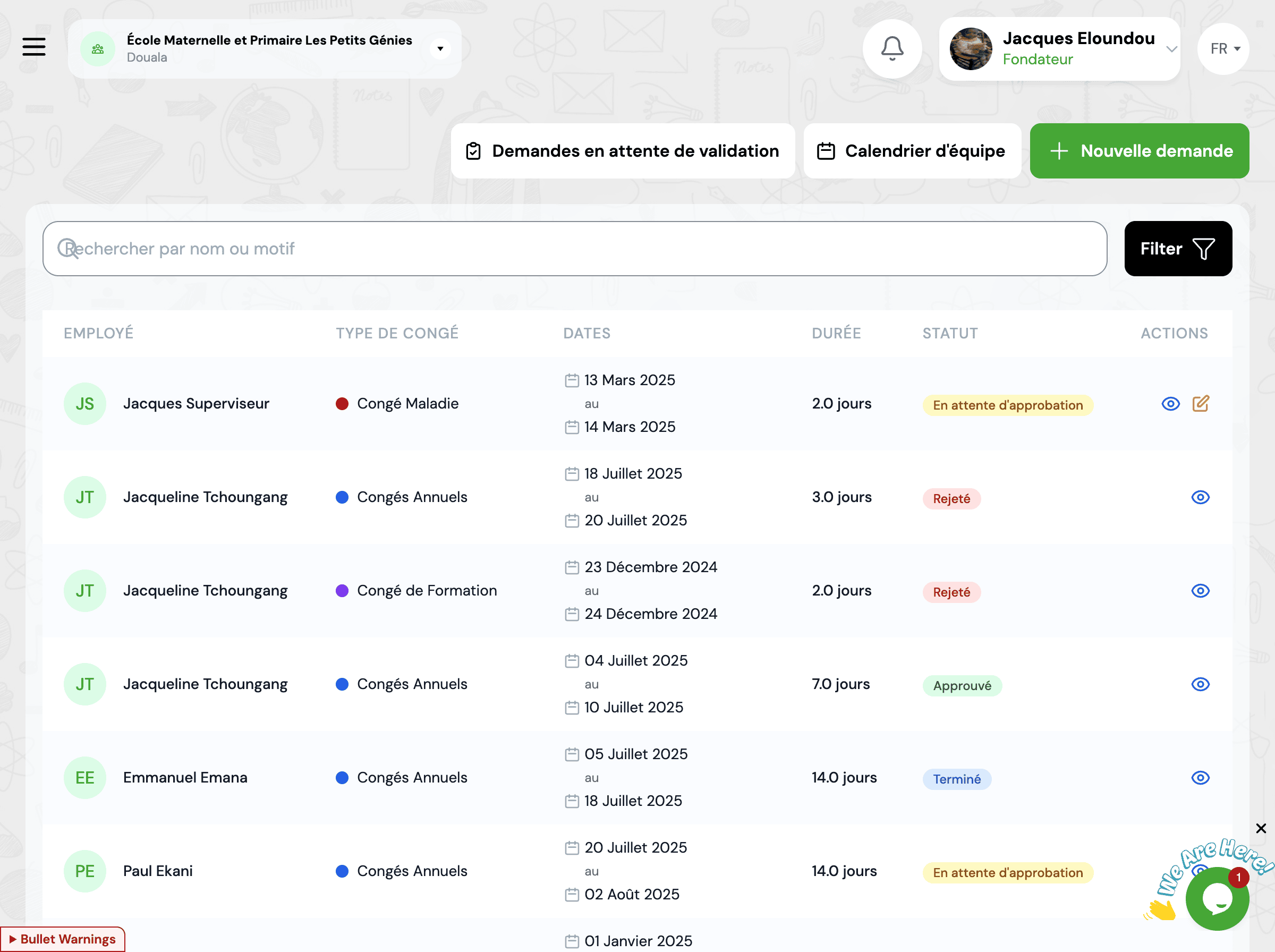
Request Leave
👤 For Staff (Mobile App)
- 1. Open the GO4SCHOOL app
- 2. Access "My Leave"
- 3. Click "New Request"
- 4. Fill out the form and submit
👨💼 For Managers (Web)
- 1. GO4SRH → Leave Requests
- 2. Click "New Request"
- 3. Select staff member
- 4. Fill out and create the request
📝 Request Form
Leave Type
Select the desired leave type (Annual Leave, Sick Leave, Maternity Leave, etc.)
💡 The available balance for this leave type is automatically displayed after selection
Leave Period
Specify the start date, end date and number of days
Start Date
First day of absence
End Date
Last day of absence
Number of Days
Calculated automatically
Reason (optional)
Add an explanatory note about the reason for leave
Attach Document (optional)
Add a medical certificate or any other supporting document if necessary
Submit Request
Review all information and send the request for approval
Automatic Verification
The system automatically verifies: (1) Available balance is sufficient, (2) No other request overlaps the period, (3) Period does not exceed the maximum allowed limit, (4) Notice period is respected according to leave type.
Approval Workflow
Each leave request goes through a configurable approval process according to your institution's hierarchy.
Approval Steps
1. Pending
The request is submitted and awaits approval from the line manager
Pending2. Under Review
The approver examines the request (checking balance, period, reason)
Under Review3. Approved
The request is accepted, the balance is automatically deducted, and notifications are sent
Approved4. Rejected (alternative)
The request is declined with a rejection reason. The requester is notified and can resubmit
RejectedApprover Actions
Approve
Accept the request and deduct days from balance
- 1. Click "Approve"
- 2. Add a note (optional)
- 3. Confirm approval
Reject
Decline the request with a reason
- 1. Click "Reject"
- 2. Specify rejection reason (mandatory)
- 3. Confirm rejection
Balance Management
Leave balances are calculated and updated automatically by the system.
📥 Days Allocated
Number of leave days granted for the year
📤 Days Taken
Number of leave days already used
💰 Remaining Balance
Days available for future requests
Automatic Calculation
Periodic Accrual
Leave days are automatically credited according to the configured frequency (monthly, quarterly, annually). For example: 2.5 days per month for annual leave.
Balance Carryover
At year-end, unused balances can be carried over to the following year according to defined parameters (full carryover, partial, or none).
Immediate Deduction
As soon as a request is approved, days are deducted from the balance. If the request is cancelled, days are automatically re-credited.
Pending Days
Days from requests pending approval are temporarily "blocked" and cannot be used for other requests.
Manual Adjustment
HR administrators can manually adjust balances if necessary (adjustment, error, exceptional situation). Any modification is tracked in the history with the reason and author of the modification.
Calendar View
The leave calendar provides a clear visualization of all planned absences.
Calendar Features
Overview
View all institution leave on a single calendar
Advanced Filters
Filter by department, function, leave type or status
Color Coding
Each leave type has a distinct color for easy reading
Export
Export the calendar to PDF or Excel for printing or sharing
Conflict Detection
The calendar automatically highlights periods when multiple members of the same team are absent simultaneously, allowing managers to anticipate staffing issues.
Best Practices
Plan Ahead
Encourage staff to submit requests at least 2 weeks before the desired date to facilitate organization.
Check the Calendar
Before submitting a request, check the calendar to avoid periods when too many colleagues are already absent.
Validate Quickly
Managers should process requests within 48-72 hours to allow staff to plan effectively.
Communicate Rejections
In case of rejection, clearly explain the reason and propose alternatives if possible.
Monitor Balances
Regularly check your balances to avoid losing days at year-end (if no carryover).
Frequently Asked Questions
Can I cancel an already approved request?
Yes, as long as the leave start date has not yet been reached. You can cancel your request from your personal space or the mobile app. Days will be automatically re-credited to your balance. If the leave has already started, contact your HR manager for manual cancellation.
What happens if my request is rejected?
If your request is rejected, you will receive a notification with the rejection reason. "Pending" days will be released and added to your available balance. You can resubmit your request taking the rejection reason into account, or discuss with your line manager to find an alternative solution.
How are working days calculated?
The system automatically calculates working days by excluding weekends (Saturday and Sunday) and public holidays configured in GO4SCONFIG. For example, if you request from Monday the 1st to Friday the 5th (5 calendar days), the system will count 5 working days. If you request from Friday the 5th to Monday the 8th, the system will count 2 working days (Friday and Monday).
Can I take more leave than my available balance?
In principle, no. The system automatically blocks requests that exceed the available balance. However, for exceptional situations (family emergency, serious illness, etc.), an HR administrator can authorize leave "on credit" by manually adjusting balances. These negative days will be deducted from future accruals.
Are public holidays deducted from my balance?
No, public holidays are not deducted from your balance. If a public holiday falls during your leave period, it is not counted as a day of leave taken. For example, if you take leave from Monday to Friday and Wednesday is a public holiday, only 4 days will be deducted from your balance.
Related Modules
Explore other features related to leave management:
Start typing to search the documentation
Quick links

We respect your privacy
We use cookies on our website to give you the most relevant experience by remembering your preferences and repeat visits. By clicking 'Accept', you consent to the use of ALL the cookies.