
Leave Balances
View, manage and adjust your staff's leave balances with a comprehensive and automated tracking system.
Introduction
The leave balance management module allows you to track in real-time each staff member's leave entitlements. The system automatically calculates monthly accruals, deductions, and year-end carryovers.
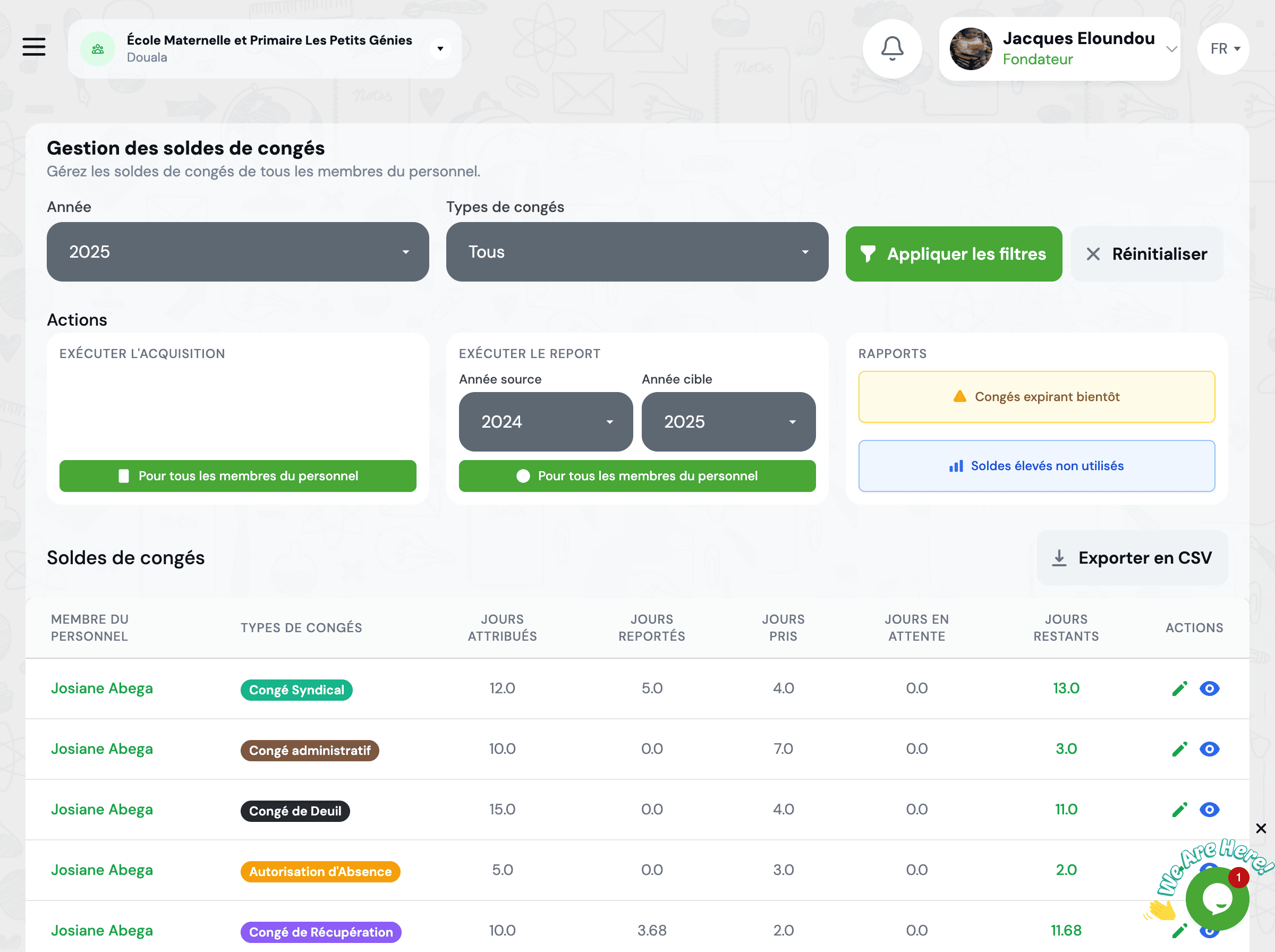
- Balances are calculated automatically each month according to defined rules
- You can make manual adjustments in case of errors or exceptional situations
- Complete history of all movements is kept for traceability
- Balances can be exported to Excel or PDF for your reports
View Balances
Multiple views are available to consult leave balances according to your needs.
Individual View
View detailed balances for a specific staff member.
- Current balance by leave type
- Days acquired since the beginning of the year
- Days consumed and days remaining
- Movement history (accruals, deductions, adjustments)
Collective View
Visualize balances for all staff or a department.
- Summary table with all staff members
- Filters by department, function, or contract type
- Sort by ascending/descending balance
- Quick identification of negative or critical balances
Analytical View
Analyze trends and overall balance statistics.
- Total leave days available in the institution
- Average leave utilization rate
- Consumption forecasts for upcoming months
- Comparison with previous years
View by Leave Type
Filter the display by specific leave type.
- Paid leave
- Sick leave
- Exceptional leave
- Any other custom type
Use color codes to quickly identify balance status: green for normal balance, orange for low balance, red for negative or critical balance.
Automatic Balance Calculation
The system automatically performs all calculations related to leave balances according to the rules you have configured.
Monthly Accrual
Each month, the system automatically credits leave accounts according to the accrual rate defined for each leave type.
Pro-rata Calculation
For new staff members or departures during the year, the system calculates entitlements pro-rata based on time of service.
Automatic Deduction
When a leave request is approved, the number of days is automatically deducted from the relevant balance.
Year-end Carryover
At the end of the reference year, the system automatically manages the carryover of unused balances according to configured rules.
Automatic Adjustments
The system can make automatic adjustments in certain situations (leave cancellation, contract modification, etc.).
Each automatic operation is recorded in the history with the date, time, and reason for the operation. You can always view the details of calculations performed.
Manual Adjustments
In certain situations, you may need to manually adjust a staff member's balance. The system allows these adjustments while maintaining complete traceability.
- Correcting a previous data entry error
- Exceptional granting of additional days (bonus, seniority, etc.)
- Regularization following a status or contract change
- Manual carryover of balances from an exceptional year
- Compensation for leave not taken in special circumstances
- Access the concerned staff member's file
- Go to the "Leave Balances" tab
- Click on "Adjust Balance" for the relevant leave type
- Enter the number of days to add (positive) or remove (negative)
- Mandatory: Add a justification for the adjustment
- Validate to apply the adjustment
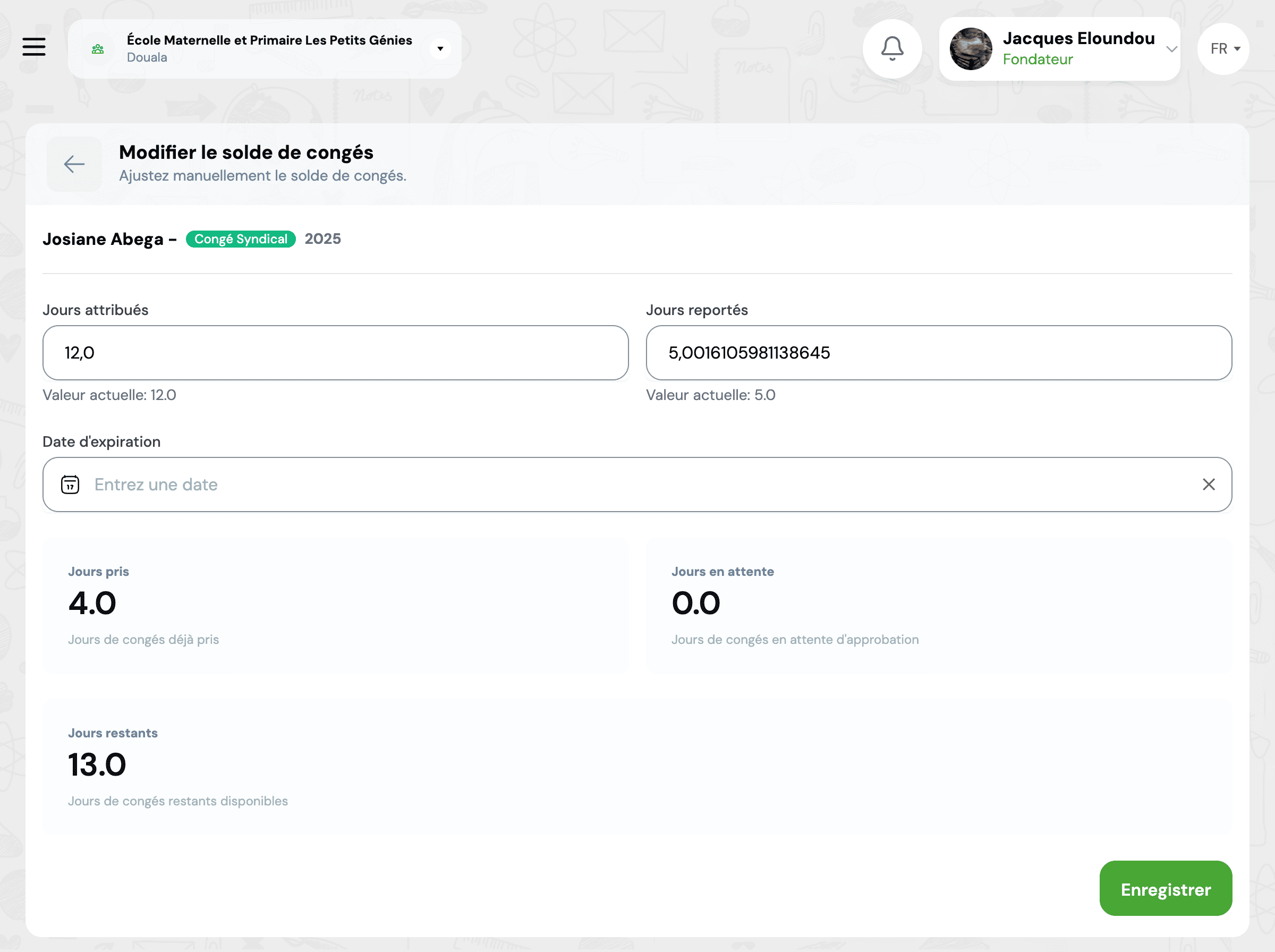
Positive Adjustment
Adding days to the balance (crediting the account). Use a positive number to increase the balance.
Negative Adjustment
Removing days from the balance (debiting the account). Use a negative number to decrease the balance.
Audit Log
All manual adjustments are tracked in the audit log with the administrator's identity, date/time, amount, and justification provided.
Validations and Controls
The system performs checks to prevent errors: verifying the balance doesn't become excessively negative, mandatory confirmation for large adjustments, etc.
- Only users with the "HR Manager" or "Director" role can make adjustments
- Justification is mandatory for any adjustment
- Adjustments exceeding 30 days require double validation
- Certain leave types may be locked against manual adjustments
Movement History
Movement history provides complete traceability of all operations affecting leave balances.
Complete Log
View all movements affecting a balance: monthly accruals, deductions for leave taken, manual adjustments, year-end carryovers.
Operation Details
Click on an operation to see all details: who performed the operation, why, references to the relevant leave request, etc.
Evolution Graphs
Visualize balance evolution over time in graph form to identify trends and usage patterns.
History Export
Export the complete history to Excel or PDF for your audit, reporting, or archiving needs.
Period Comparison
Compare balance evolution between different periods (months, quarters, years) to identify trends.
Automatic Alerts
Configure alerts to be notified of important events: negative balance, low balance, monthly accrual performed, etc.
Complete history is kept indefinitely to ensure regulatory compliance and allow audits. Data can be archived after a configurable period while remaining accessible.
Bulk Operations
To save time, you can perform certain balance operations on multiple staff members simultaneously.
Mass Attribution
Assign a number of leave days to multiple staff members in a single operation.
- Select the concerned staff members (by department, function, etc.)
- Choose the leave type and number of days to assign
- Add a justification
- Validate to apply the attribution to all selected
Excel Import
Import balance adjustments from an Excel file to process large volumes.
- Download the provided Excel template
- Fill it with employee numbers, leave types, and adjustments
- Import the completed file
- Review the preview and validate the import
Automatic Recalculation
Relaunch automatic calculation of all balances for a given period if rules are modified.
- This operation may take time if you have many staff members
- A backup is automatically created before recalculation
- Manual adjustments are preserved and taken into account in the recalculation
Year-end Carryover
Perform year-end balance carryover for all staff in a single operation.
- Operation typically performed in December or January
- Configured carryover rules are applied automatically
- A detailed report is generated with before/after carryover balances
- Always review the preview before confirming a bulk operation
- Perform a manual backup if the operation is critical
- Test first on a small group before applying to all staff
- Keep a record of the operation's justification for audit purposes
Frequently Asked Questions
Why doesn't the displayed balance match my expectations?
Several reasons may explain a difference:
- Pro-rata calculation: If hire or departure occurred during the year
- Pending leave: Days from pending requests are "reserved" but not yet deducted
- Counted absences: Certain absence types may be deducted from balance according to your configuration
- Manual adjustments: An administrator may have made an adjustment
Solution: Review movement history to understand in detail:
- Access the staff member's file
- "Leave Balances" tab → "View History"
- Check each movement and its origin
How to correct an incorrect balance?
To correct an incorrect balance, follow these steps:
- Identify the error source in movement history
- If it's an incorrect leave request: cancel the request (days will be re-credited)
- If it's an incorrect manual adjustment: make a new adjustment in the opposite direction
- If it's an automatic calculation problem: check the leave type settings
- If necessary, make a manual adjustment to correct the balance
- Always document the correction's justification
Important: Never directly delete a movement from history. Always perform a correction operation that will be tracked.
Can we have a negative balance?
Yes, in certain configured cases:
- Advance leave: If your HR policy allows taking leave "in advance" on rights not yet acquired
- Exceptional situations: Family emergencies, medical situations requiring immediate absence
- Later regularization: The negative balance will be regularized through:
- Configurable limits: You can define a maximum authorized negative balance
This provides flexibility while maintaining control.
Access: GO4SRH → Leave Balances → View details
How does leave carryover from one year to another work?
Leave carryover follows the rules you have configured:
- Entitlement verification The system identifies the remaining balance on December 31 (or your HR year-end date)
- Applying carryover rules
- Full carryover: all unused days carry over to the following year
- Limited carryover: only a maximum number of days is carried over (e.g., max 10 days)
- No carryover: unused days are forfeited
- Usage deadline
- Carried over days may have a usage deadline (e.g., before March 31)
- Carried over days may be identified separately in the balance
- Alerts can remind to use carried over days before expiration
- New entitlement credit New year's entitlements are credited in addition to carried over days
Documentation: Each carryover operation generates a summary report per employee.
Are public holidays deducted from leave balance?
No, public holidays are never deducted from leave balance:
- Smart calculation: The system automatically excludes public holidays when calculating leave duration
- Weekends also excluded: Saturdays and Sundays (or your configured non-working days) are not counted either
- Calculation example:
- Leave from Monday 1st to Friday 5th (5 calendar days)
- Wednesday 3rd = public holiday
- Actual deduction = 4 working days only
- Configured calendar: Public holidays are defined in GO4SCONFIG → Institution calendar
Advanced configuration: You can configure local public holidays specific to certain departments or sites.
Can leave balances be exported?
Yes, multiple export options are available:
- Excel Export
- Complete table with all staff members and their balances
- Detail by leave type (separate sheets)
- Including movement history if desired
- Accounting Export
- Paid leave provision (financial valuation)
- Format compatible with your accounting software
- Automatic calculation based on salaries and balances
- Periodicity: One-time or scheduled exports (monthly, quarterly, annual)
Access: GO4SRH → Leave Balances → "Export" button (according to your permissions)
Next Steps
Now that you've mastered leave balance management, explore these complementary features:
Leave Types
Configure available leave types and their accrual rules
Leave Management
Process leave requests and manage the validation workflow
HR Reports
Generate detailed reports on leave usage
Staff Management
Manage complete staff files
Need Help?
Our support team is available to assist you. Contact us at [email protected] or visit our help center.
Start typing to search the documentation
Quick links

We respect your privacy
We use cookies on our website to give you the most relevant experience by remembering your preferences and repeat visits. By clicking 'Accept', you consent to the use of ALL the cookies.