
Staff Evaluations
Comprehensive performance evaluation system for structured and objective team monitoring.
Introduction
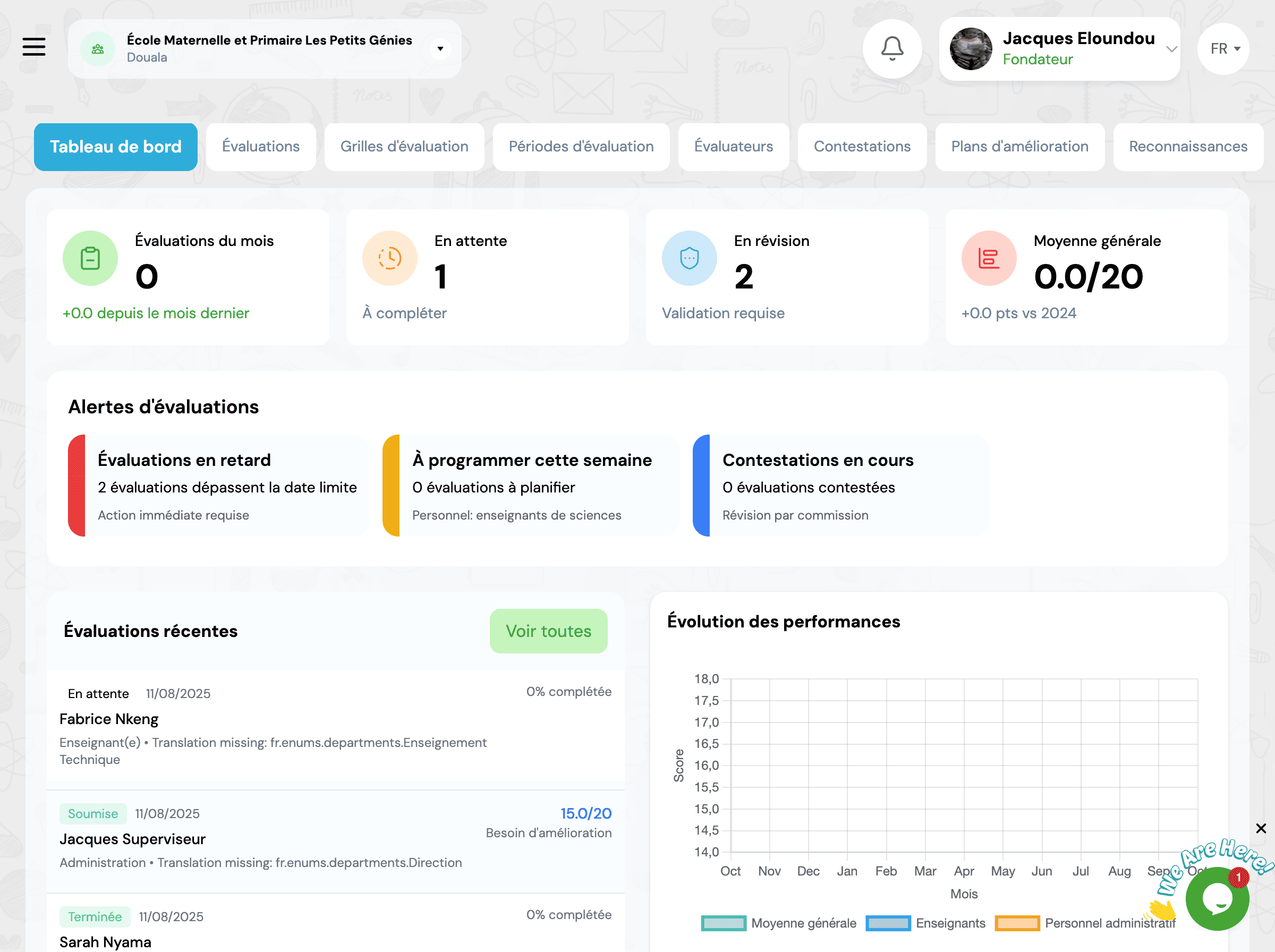
The evaluation module allows you to structure your staff performance evaluations. It includes creating customized evaluation grids, scheduling evaluation periods, conducting evaluations and monitoring improvement plans.
Good to know
Evaluations are based on customizable grids per function. Each evaluation can involve multiple evaluators (direct manager, HR, management) and includes a transparent validation process.
Evaluation Grids
Evaluation grids define the criteria by which your staff will be evaluated. You can create function-specific grids or use common grids.
Create an evaluation grid
-
1
Name the grid
Give a descriptive name to your evaluation grid
Example: Evaluation Grid - Teachers -
2
Define categories
Organize your criteria into thematic categories
Professional Skills - Technical mastery and job expertiseBehavior and Attitude - Punctuality, attendance, teamworkResults and Performance - Goal achievement, work quality -
3
Add criteria
For each category, add evaluation criteria with their coefficients
Criterion Coefficient• Pedagogical content mastery ×3• Classroom management ability ×2• Punctuality and attendance ×2 -
4
Define rating scale
Configure the scale that will be used to evaluate each criterion
1Insufficient2Fair3Satisfactory4Good5Excellent
Template Grids
GO4SRH offers ready-to-use template grids that you can adapt to your needs. Save time while benefiting from best practices.
Evaluation Periods
Evaluation periods allow you to plan and organize your staff evaluation sessions. You define who will be evaluated, when and by whom.
Create an evaluation period
Basic Information
Period name
Grid used
Start date
End date
Staff Selection
Choose which staff members will be evaluated during this period
Evaluators
Designate the people who will conduct the evaluations
Automatic Notifications
The system will automatically notify evaluators and evaluatees at the start of the period. Reminders will be sent to evaluators who haven't completed their evaluations.
Conduct an Evaluation
For the Evaluator
-
1
Access the evaluation
Click on the evaluation to complete from your dashboard or notifications
-
2
Rate each criterion
Assign a rating according to the defined scale for each grid criterion
💡 Tip: Be objective and base your ratings on observable facts -
3
Add comments
Justify your ratings with concrete examples and observations
-
4
Identify strengths and areas for improvement
Summarize strengths and areas requiring progress
-
5
Submit the evaluation
Validate and submit the evaluation. The evaluatee will be automatically notified
For the Evaluatee
View the evaluation
Access your evaluation from your personal space
Add your comments
You can add remarks or clarifications about the received evaluation
Sign the evaluation
Sign electronically to acknowledge receipt
Request an interview (optional)
If necessary, you can request an interview to discuss the evaluation
Evaluation Interview
It is strongly recommended to schedule a face-to-face interview with each evaluatee to discuss results, objectives and the improvement plan. This exchange helps clarify expectations and strengthen motivation.
Improvement Plans
Following an evaluation, you can create a personalized improvement plan to help the employee progress on identified points.
Contents of an improvement plan
SMART Objectives
Define Specific, Measurable, Achievable, Realistic and Time-bound objectives
Concrete Actions
List actions to be taken to achieve objectives (training, coaching, etc.)
Deadlines
Set deadlines for each action and objective
Required Resources
Identify human, material or financial resources needed
Regular Monitoring
Schedule regular follow-up meetings (monthly or quarterly) to assess progress and adjust the plan if necessary. The system can send automatic reminders.
Evaluation Reports
The module automatically generates several types of reports to analyze evaluation results.
Global Statistics
- • Evaluation completion rate
- • Overall average by function
- • Grade distribution
- • Evolution trends
Individual Reports
- • Complete evaluation sheet
- • Evaluation history
- • Performance evolution
- • Active improvement plans
Comparative Analysis
- • Comparison by department
- • Comparison by function
- • Comparison by period
- • Top performers identification

Frequently Asked Questions
What is the recommended frequency for evaluations?
It is recommended to conduct at least one annual evaluation for each staff member. However, many institutions opt for semi-annual evaluations (twice a year) for more regular monitoring. You can also schedule quarterly evaluations for new employees or those on probation.
Are evaluations anonymous?
No, evaluations are not anonymous. The evaluator's identity is visible to ensure transparency and enable constructive dialogue. However, only authorized evaluators and HR managers have access to complete evaluations. The evaluatee can view their own evaluation but not their colleagues'.
Can an evaluation be modified after submission?
Yes, evaluators can modify an evaluation as long as it has not been signed by the evaluatee. Once signed, only an HR administrator can make modifications, and all changes are tracked in the history for transparency. If a major error is detected after signing, you can cancel the evaluation and create a new one.
How to handle disagreements about an evaluation?
If an employee disagrees with their evaluation, they can add their comments in the dedicated section before signing. They can also request an interview with their evaluator and/or HR management. In cases of persistent disagreement, a mediator (usually an HR manager or management) can be brought in to review the evaluation. This entire process is documented in the system.
Next Steps
Explore other staff management features
Start typing to search the documentation
Quick links

We respect your privacy
We use cookies on our website to give you the most relevant experience by remembering your preferences and repeat visits. By clicking 'Accept', you consent to the use of ALL the cookies.