
Absence Management
Track and manage staff absences with justifications and detailed statistics.
Introduction
The absence management module allows recording, tracking and analyzing all staff absences. It distinguishes justified absences from unjustified ones and allows attaching supporting documents.
Good to Know
Absences can be automatically deducted from leave balances according to the configured absence type. The system automatically calculates the absenteeism rate per staff member and per department.
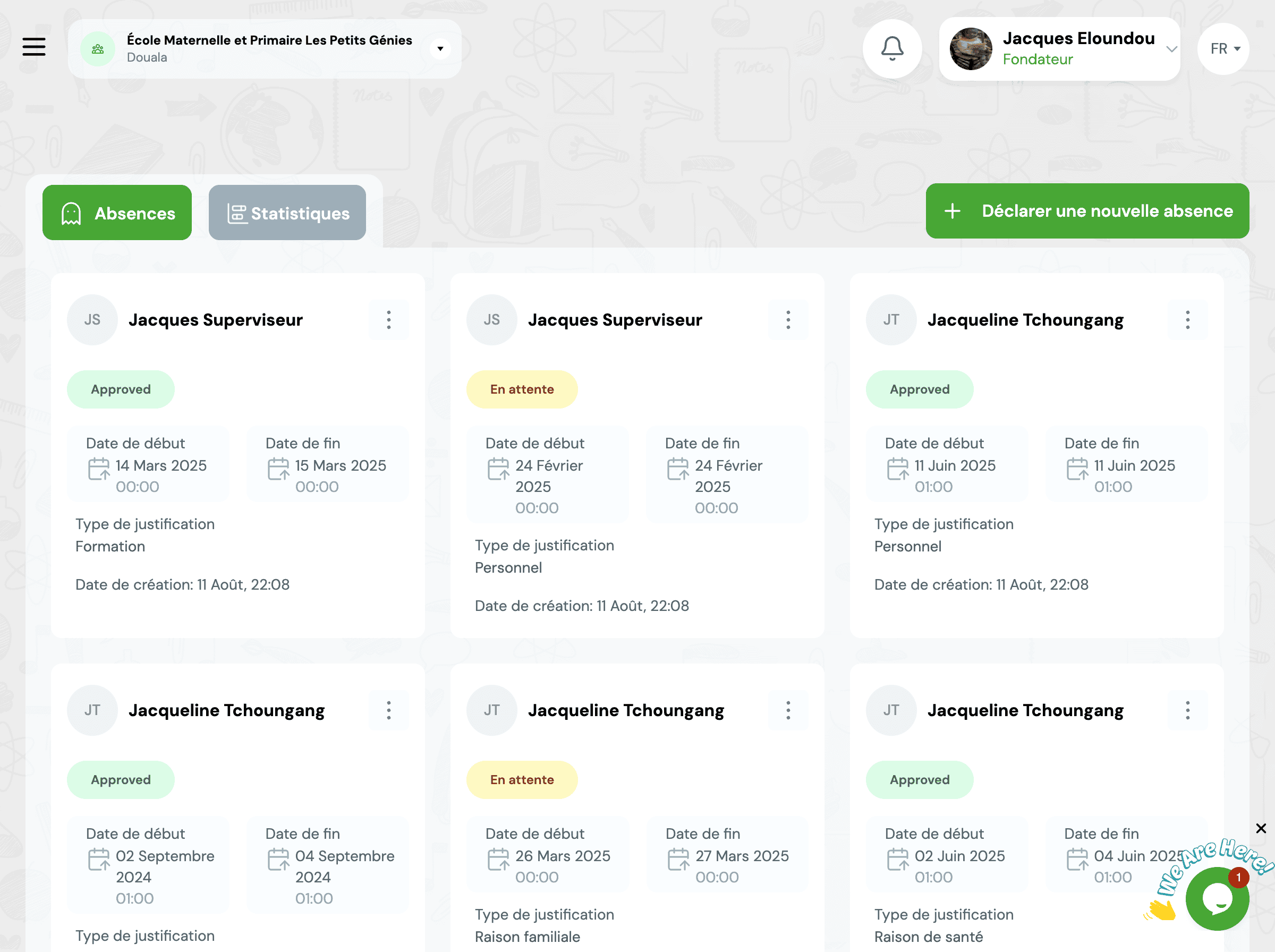
Record an Absence
Recording Steps
-
1
Access the Module
GO4SRH → Absences → "New Absence" Button
-
2
Select Staff Member
Choose the absent person from the dropdown list
Search by name or employee number -
3
Specify Period
Enter start date, end date and number of days
💡 The number of working days is automatically calculated taking into account weekends and holidays
-
4
Choose Absence Type
Select the type (Sick Leave, Personal, Training, etc.)
-
5
Add Justification (optional)
Attach a medical certificate, attestation or other document
-
6
Add a Note (optional)
Specify circumstances or additional details
-
7
Save
Validate to create the absence
Automatic Recording
If a staff member does not clock in and has no approved leave request, the system can automatically create an unjustified absence. This feature is configurable in settings.
Absence Types
Different absence types can be configured according to your institution's needs.
Sick Leave
Absence for medical reasons
Justification requiredPersonal
Absence for personal reasons
Justification optionalTraining
Absence for professional training
Justification requiredUnjustified
Absence without justification
No justificationMission
Absence for official mission
Mission order requiredAuthorization
Pre-approved authorized absence
Authorization required⚙️ Type Configuration
Administrators can create, modify or delete absence types from GO4SRH → Settings → Absence Types. For each type, you can configure:
- • Whether a justification is mandatory or optional
- • Whether the absence is deducted from leave balances
- • Whether a notification is sent to the line manager
- • The display color in the calendar
Managing Justifications
📎 Accepted Document Types
⚠️ Maximum size: 5 MB per file
✅ Justification Validation
Justifications can be validated or rejected by HR managers or line managers.
✓ Approved
The justification is valid and the absence is justified
⏳ Pending
The justification is being verified
✗ Rejected
The justification is invalid or insufficient
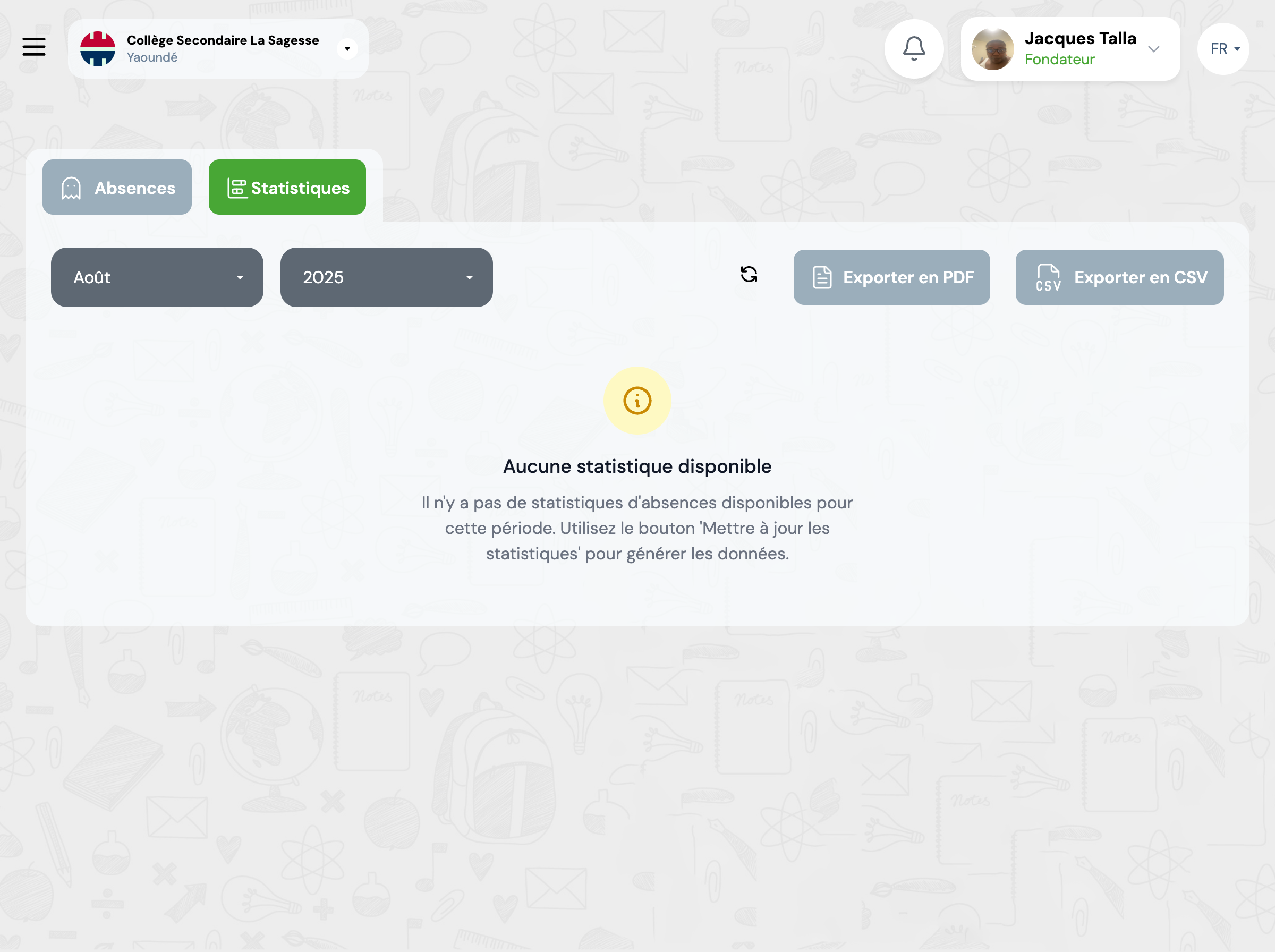
Absence Statistics
The system automatically generates absenteeism statistics for better analysis.
📊 By Staff Member
- • Total number of absences
- • Number of absence days
- • Absenteeism rate (%)
- • Distribution by absence type
- • Monthly trend
📈 By Department/Function
- • Average absenteeism rate
- • Comparison between departments
- • Yearly trends
- • Most frequent absence types
- • Most affected days of the week
Frequently Asked Questions
What is the difference between an absence and a leave?
A leave is a planned absence approved in advance by management (e.g., annual leave, maternity leave). An absence is generally unplanned and can be justified (sick leave) or unjustified. Leaves are requested through the "Leave Requests" module, while absences are recorded in the "Absences" module.
Can an absence be converted into a leave?
Yes, if a staff member has been absent and wishes for this period to be deducted from their leave balance, the administrator can retroactively create a leave request and delete the absence. However, this operation must be justified and documented to maintain traceability.
How are long-term absences handled?
For long-term absences (prolonged illness, parental leave, etc.), you can create a single absence covering the entire period. The system will automatically calculate all working days concerned. Reminders can be configured to request periodic justifications (e.g., medical certificate every 15 days).
Are absences visible to the staff member concerned?
Yes, each staff member can view their absence history in their personal space on the mobile app or web portal. They can also receive notifications when an absence is recorded and add justifications directly from their interface.
Related Modules
Explore other features related to staff management:
Start typing to search the documentation
Quick links

We respect your privacy
We use cookies on our website to give you the most relevant experience by remembering your preferences and repeat visits. By clicking 'Accept', you consent to the use of ALL the cookies.