
Manage Roles and Permissions
Precisely configure access rights for each team member by module and resource.
Introduction
GO4SCHOOL's role and permission system allows you to finely control who can do what in your institution. Each staff member can have one or more roles, and each role defines specific permissions for each module and resource of the platform.
Good to know
Permissions are configurable for each school. You can give different rights to the same role depending on the institutions in your school complex.
Access hierarchy
Role
Function held by a user (Principal, Teacher, Accountant, Secretary, etc.)
Module
Major platform section (GO4SCONFIG, GO4SBOOK, GO4SFEES, GO4SCOM, etc.)
Resource
Specific functionality in a module (Academic years, Students, Payments, etc.)
Permission
Authorized action on a resource (Read, Create, Update, Delete)
The 4 types of permissions
For each resource, you can grant 4 different types of permissions. These permissions are independent and cumulative: a user can have the right to read and update without being able to create or delete.
✓ Read
Allows viewing and consulting data without being able to modify it
Example: View student list, view report card
✓ Create
Allows adding new data to the system
Example: Enroll a new student, create a class
✓ Update
Allows editing and updating existing data
Example: Modify parent contact information, correct a grade
✓ Delete
Allows permanently deleting data from the system
Example: Delete an old document, remove a class
Important: Principle of least privilege
Only grant permissions strictly necessary for each user to accomplish their tasks. Avoid giving deletion rights unless absolutely essential.
View role permissions
Steps to view
- 1 In the sidebar menu, click on GO4SCONFIG
- 2 Select General
- 3 Go to the Roles & Permissions
- 4 Click on the role you want to view in the list
- 5 The page displays all active modules and their permissions for this role
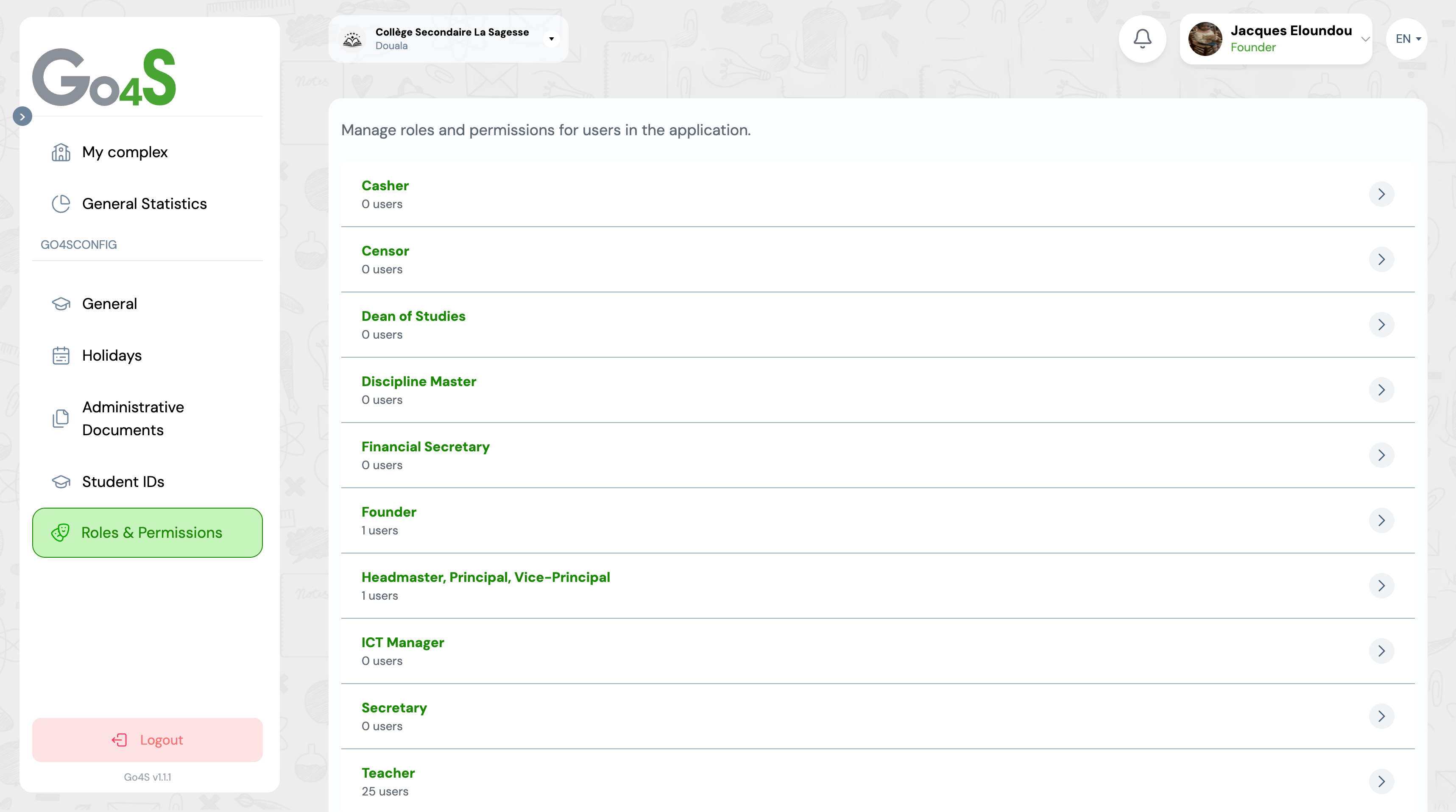
Role detail page displaying modules and permissions
Information displayed
Role name and number of users
How many people have this role in your school
List of active modules
Only modules activated in your school are displayed
Resources and permissions per module
Detail of each resource with the 4 types of permissions
View Available Modules
After selecting a role, you access a page showing all active modules in your institution. From this view, you can view and configure permissions for each module.
Navigating modules
- 1 On the role page, you see the list of all active modules
- 2 Each module displays its name and icon
- 3 A "Configure" button is present on the right of each module
- 4 Click on "Configure" to access the module's permissions
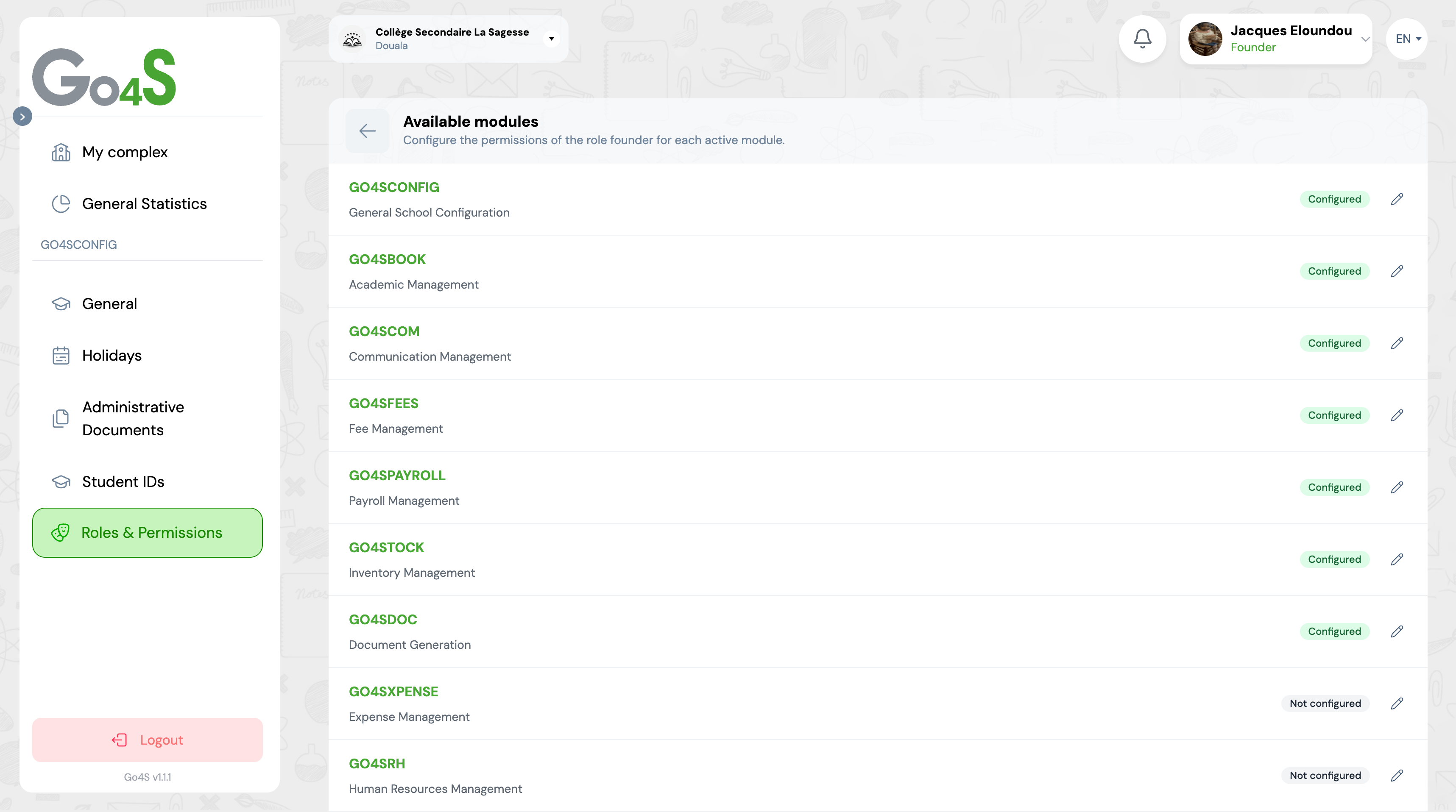
Page displaying list of available modules with configuration buttons
Visible information
Active modules only
Only modules you have activated in your school are displayed
Configuration status
You can see if permissions have already been configured for each module
Quick access
Click on "Configure" to manage permissions for the chosen module
Edit role permissions
You can edit a role's permissions module by module. Each modification only affects the selected module.
Steps to edit
- 1 On the role detail page, locate the module whose permissions you want to edit
- 2 Click on the Edit
- 3 A page displays all module resources with their current permissions
- 4 Check or uncheck boxes for each permission (Read, Create, Update, Delete)
- 5 Click on Save
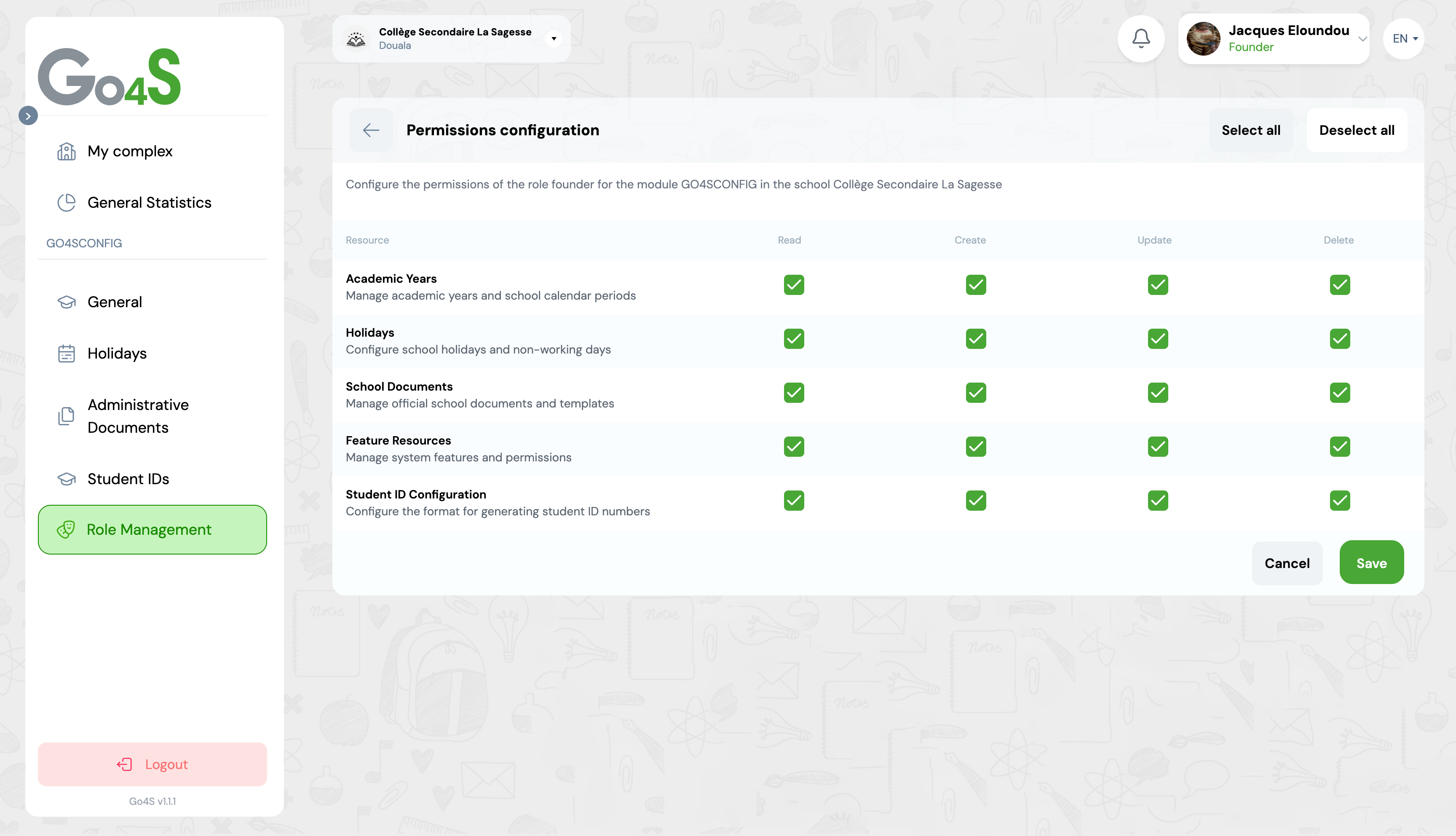
Permission editing page with resource table and checkboxes
Immediate effect
Permission changes take effect immediately. Users with this role will see their access modified from the next action they perform on the platform.
Module and resource structure
GO4SCHOOL is organized into modules, each containing multiple resources. Here are some examples of modules and their main resources.
GO4SCONFIG - Configuration & Settings
- Academic years
- Holidays
- Administrative documents
- Student ID settings
- Roles and permissions
GO4SBOOK - Academic Management
- Students
- Classes
- Subjects and courses
- Evaluations and grades
- Report cards
GO4SFEES - Fee Management
- School fees
- Payments
- Receipts and invoices
- Financial tracking
GO4SCOM - Communication
- Messages
- Notifications
- News
- Events
Common Use Cases
Here are concrete examples of permission configuration for different roles in your institution.
Teacher
Need: Manage class, enter grades, view students
| Module | Read | Create | Update | Delete |
|---|---|---|---|---|
| GO4SBOOK - Students | ✅ | ❌ | ❌ | ❌ |
| GO4SBOOK - Grades | ✅ | ✅ | ✅ | ❌ |
| GO4SCOM - Messages | ✅ | ✅ | ❌ | ❌ |
Principal
Need: Full access to all modules for supervision
| Module | Read | Create | Update | Delete |
|---|---|---|---|---|
| All modules | ✅ | ✅ | ✅ | ✅ |
Secretary
Need: Manage enrollments, communicate with parents
| Module | Read | Create | Update | Delete |
|---|---|---|---|---|
| GO4SBOOK - Students | ✅ | ✅ | ✅ | ❌ |
| GO4SCOM - Messages | ✅ | ✅ | ✅ | ❌ |
| GO4SFEES - Payments | ✅ | ❌ | ❌ | ❌ |
Best Practices
Apply the principle of least privilege
Only give permissions strictly necessary to perform the job. Avoid giving all rights by default
Limit deletion rights
Deletion permission should be reserved for management roles and administrators
Review permissions periodically
Regularly check (e.g., each term) that permissions are still appropriate
Document your decisions
Note why certain permissions were granted or denied to facilitate future audits
Test before wide deployment
Before assigning a role to multiple people, test it with one user to verify permissions are correct
Communicate changes
Inform concerned users when their permissions change to avoid confusion
Frequently Asked Questions
Can a user have multiple roles?
Yes, a user can have multiple roles in your institution. For example, someone can be both a teacher and a pedagogical coordinator. In this case, they will benefit from all combined permissions of both roles. If one role authorizes an action and the other denies it, the most permissive permission applies (the action will be authorized).
What happens if I remove a permission from a role?
The change takes effect immediately. Users with this role will lose access to the concerned functionality from their next attempt to access it. They will see a message informing them that they do not have the necessary permissions. Existing data is not affected, only access is restricted.
How to create a new custom role?
Currently, predefined roles (Principal, Teacher, Secretary, Accountant, etc.) cover most common needs. Custom role creation is not yet available in the user interface. If you need a specific role, contact GO4SCHOOL support who can help you create it or adapt existing roles to your needs.
Are permissions the same for all schools in the complex?
No, permissions are configurable school by school. The same role (e.g., "Teacher") can have different permissions depending on the school. This allows fine-tuning access to the specificities of each institution in your school complex. You must configure permissions separately for each school.
Can I copy permissions from one role to another?
Currently, there is no automatic copy function. You must manually configure permissions for each role. However, you can view permissions of an existing role and manually reproduce them on another role by checking the same boxes. For more complex needs, contact support.
Next Steps
Now that you understand the role and permission system, explore other settings:
