
Define Holidays and Vacations
Configure the complete calendar of holidays and vacation periods for your institution.
Introduction
Managing holidays and school vacations is essential for planning the academic year. GO4SCHOOL allows you to define all non-working days to automatically synchronize the calendar with all platform modules.
Good to know
Holidays and vacations are associated with a specific academic year. You must first create your academic year before you can add holidays.
Types of non-working periods
Holidays
Single-day national holidays (national holiday, religious holiday, etc.)
Vacation periods
Multi-day school vacations (Christmas break, Easter break, summer break, etc.)
Platform impacts
Automatic synchronization
Holidays and vacations are automatically taken into account in:
- Automatic absence calculation
- Class and evaluation planning
- Attendance statistics
- Schedule and school calendar
Add a holiday
Step 1: Access the module
- 1 In the sidebar menu, click on GO4SCONFIG
- 2 Select General
- 3 Go to the Holidays
- 4 Click on the + Add a holiday
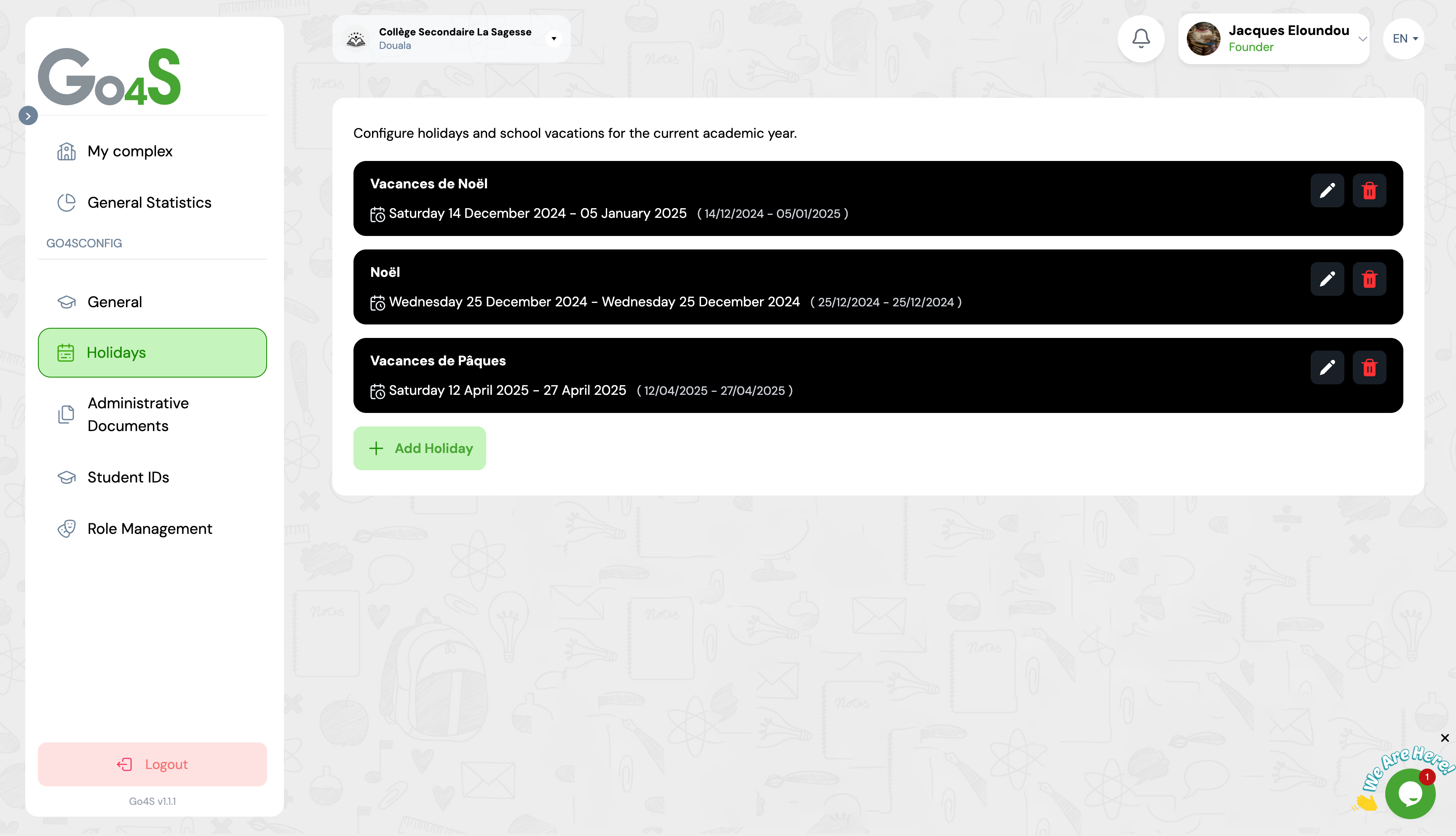
Holiday management interface with list and add button
Step 2: Fill in the form
📝 Holiday name
Give a clear name to the holiday
Example: Independence Day
Use explicit names to facilitate calendar understanding
📅 Start date
Select the date of the holiday (for a single day, this date will be identical to the end date)
Example: May 20, 2025
📅 End date
For a single holiday, select the same date as the start date
Example: May 20, 2025
✅ Save
Click on "Save" to create the holiday
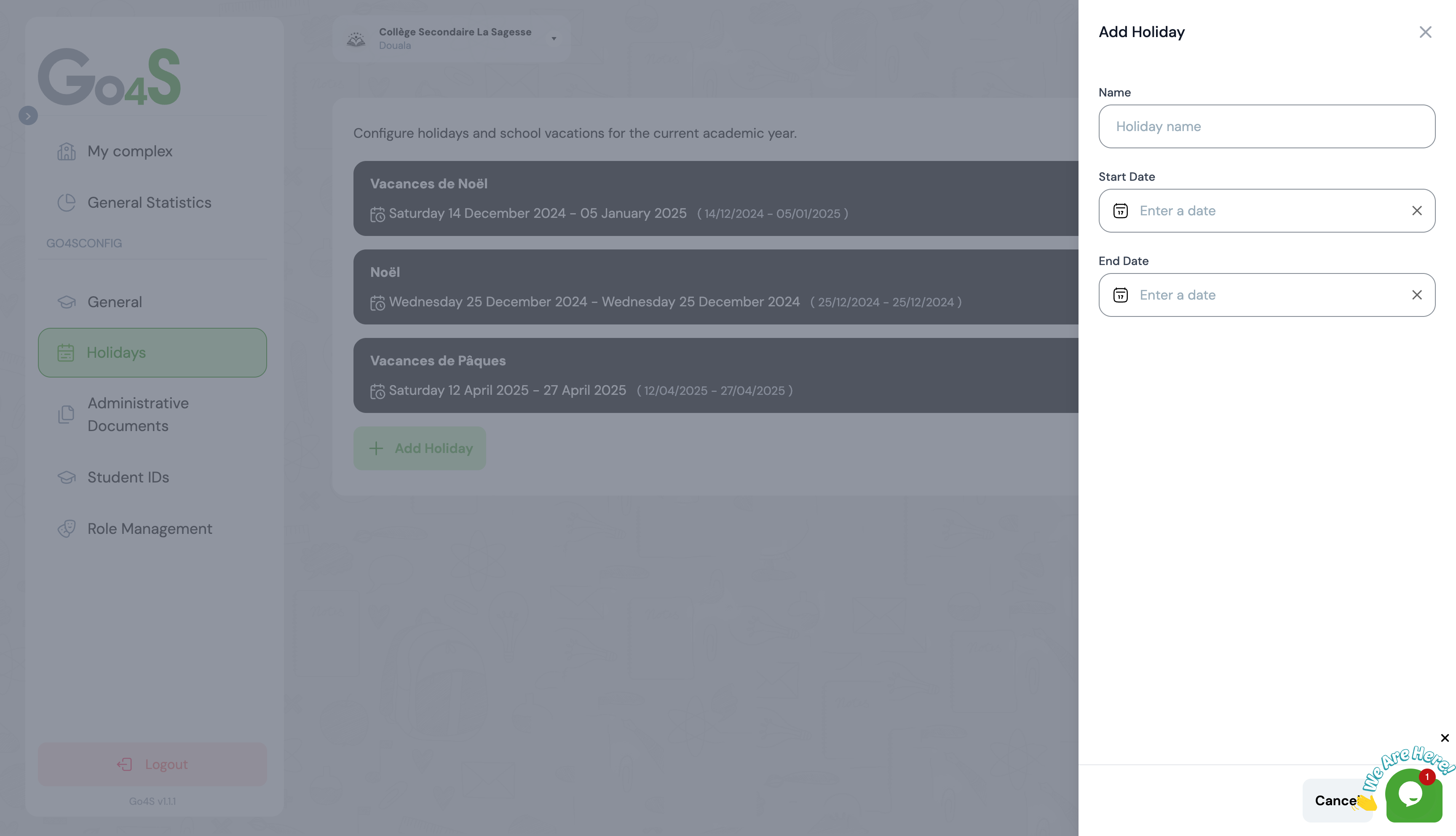
Holiday add modal form with name, start date and end date fields
Add a vacation period
Vacation periods are multi-day consecutive holidays. The add process is identical to that of a single holiday, but with different start and end dates.
📝 Example: Christmas Break
Name:
Christmas Break
Start date:
December 20, 2024
End date:
January 5, 2025
📝 Example: Easter Break
Name:
Easter Break
Start date:
April 14, 2025
End date:
April 28, 2025
Important
Ensure that vacation dates fall within the academic year period and do not overlap with other already defined vacation periods.
Edit a holiday
You can edit a holiday or vacation period at any time to correct an error or update dates.
Steps to edit
- 1 In the holiday list, locate the one you want to edit
- 2 Click on the edit icon (pencil)
- 3 The form fills with existing data
- 4 Modify the name, start date, or end date as needed
- 5 Click on "Save" to apply changes
Delete a holiday
If a holiday was created by mistake or is no longer relevant, you can permanently delete it.
Warning: Irreversible action
Deleting a holiday is permanent and cannot be undone. All automatic calculations related to this day will be recalculated without this period.
Deletion procedure
- 1 In the list, locate the holiday to delete
- 2 Click on the delete icon (trash)
- 3 Confirm deletion in the window that appears
Manage holidays by academic year
Each academic year has its own holiday calendar. You can easily switch between years to view or edit holidays for each period.
Change academic year
- 1 At the top of the holiday list, use the academic year selector
- 2 Select the academic year you want to view
- 3 The list automatically updates to display holidays for the selected year
- 4 You can add new holidays that will be automatically linked to this year
Tip: Duplicate from year to year
Some holidays repeat every year (national holiday, etc.). To save time, you can copy dates from the previous year and adjust them for the new year.
Best Practices
Configure the calendar at the beginning of the year
Define all holidays and vacations when creating the academic year for better organization
Use consistent names
Adopt a clear naming convention (e.g., "Christmas Break 2024" rather than "December vacation")
Check for overlaps
Ensure no vacation period overlaps another to avoid calculation issues
Consult the official calendar
Refer to your country's official calendar for national holidays
Communicate changes
If you modify the calendar during the year, inform staff and parents via GO4SCOM
Frequently Asked Questions
What happens if I delete a holiday after recording data?
If you delete a holiday, all automatic calculations (absences, attendance, statistics) will be recalculated without taking this period into account. Existing data will not be lost, but their interpretation will change. For example, an absence recorded during this period will be counted as a normal absence instead of being ignored.
Can I add holidays during the year?
Yes, you can add, edit, or delete holidays at any time. However, it is recommended to define the complete calendar at the beginning of the year to avoid confusion and ensure data consistency across all modules.
How to manage movable holidays (like Easter)?
For holidays whose date varies each year (like Easter, Eid al-Adha, etc.), you will need to add them manually each year with the correct dates. Consult your country's official calendar at the beginning of each academic year to get the exact dates.
Are weekends automatically considered non-working days?
Yes, GO4SCHOOL automatically considers Saturdays and Sundays as non-working days. You do not need to add them manually to the holiday calendar. Only weekday holidays and vacation periods need to be configured.
Can I copy the calendar from one year to another?
Currently, there is no automatic copy function. You will need to manually recreate holidays for each new academic year. However, you can consult holidays from the previous year to use them as inspiration and save time during entry.
Next Steps
Now that you have configured your holiday calendar, explore these features:
